| .github/ISSUE_TEMPLATE | ||
| autoload | ||
| compiler | ||
| docs | ||
| plugin | ||
| python3/vimspector | ||
| support | ||
| tests | ||
| .gitignore | ||
| .gitmodules | ||
| .lgtm.yml | ||
| .mergify.yml | ||
| .vimspector.json | ||
| .vintrc.yml | ||
| .ycm_extra_conf.py | ||
| azure-pipelines.yml | ||
| CODE_OF_CONDUCT.md | ||
| CONTRIBUTING.md | ||
| dev_requirements.txt | ||
| gh-md-toc | ||
| install_gadget.py | ||
| LICENCE | ||
| make_package | ||
| README.md | ||
| run_tests | ||
| tox.ini | ||

vimspector - A multi language graphical debugger for Vim
For a tutorial and usage overview, take a look at the Vimspector website

- Features and Usage
- Installation
- About
- Mappings
- Usage
- Debug adapter configuration
- Customisation
- FAQ
- Motivation
- License
- Sponsorship
Features and Usage
The plugin is a capable Vim graphical debugger for multiple languages. It's mostly tested for c++, python and TCL, but in theory supports any language that Visual Studio Code supports (but see caveats).
The Vimspector website has an overview of the UI, along with basic instructions for configuration and setup.
But for now, here's a (rather old) screenshot of Vimsepctor debugging Vim:
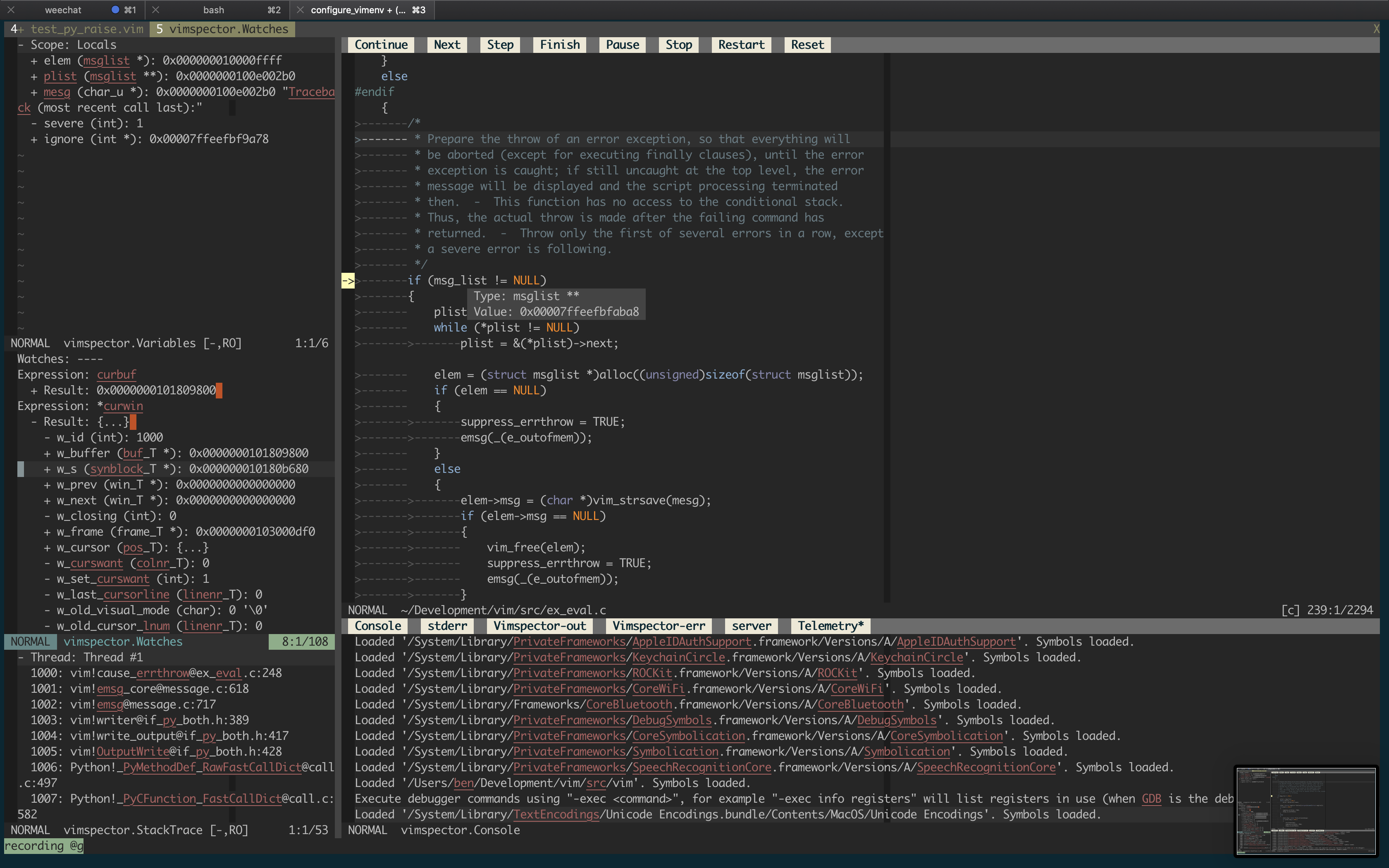
Supported debugging features
- flexible configuration syntax that can be checked in to source control
- breakpoints (function, line and exception breakpoints)
- conditional breakpoints (function, line)
- step in/out/over/up, stop, restart
- launch and attach
- remote launch, remote attach
- locals and globals display
- watch expressions
- call stack display and navigation
- variable value display hover
- interactive debug console
- launch debugee within Vim's embedded terminal
- logging/stdout display
- simple stable API for custom tooling (e.g. integrate with language server)
Supported languages:
The following languages are used frequently by the author and are known to work with little effort, and are supported as first-class languages.
- C, C++, etc. (languages supported by gdb or lldb)
- Python 2 and Python 3
- TCL
- Bash scripts
- Java
Languages known to work
The following languages are used frequently by the author, but require some sort of hackery that makes it challenging to support generally. These languages are on a best-efforts basis:
- C# (c-sharp) using dotnet core
- Go (requires separate installation of Delve)
- Node.js (requires node <12 for installation)
- Anything running in chrome (i.e. javascript).
Languages known not to work
- C# (c-sharp) using mono debug adapter (vimspector unable to set breakpoints)
Other languages
Vimspector should work for any debug adapter that works in Visual Studio Code, but there are certain limitations (see FAQ). If you're trying to get vimspector to work with a language that's not "supported", head over to Gitter and contact the author. It should be possible to get it going.
Installation
There are 2 installation methods:
- Using a release tarball, or
- Manually
Release tarballs come with debug adapters for the default languages pre-packaged. To use a release tarball:
- Check the dependencies
- Untar the release tarball for your OS into
$HOME/.vim/pack:
$ mkdir -p $HOME/.vim/pack
$ curl -L <url> | tar -C $HOME/.vim/pack zxvf -
- Configure your project's debug profiles (create
.vimspector.json)
Alternatively, you can clone the repo and select which gadgets are installed:
- Check the dependencies
- Install the plugin as a Vim package. See
:help packages. - Install some 'gadgets' (debug adapters)
- Configure your project's debug profiles (create
.vimspector.json)
Dependencies
Vimspector requires:
- One of:
- Vim 8.2 Huge build compiled with Python 3.6 or later
- Neovim 0.4.3 with Python 3.6 or later (experimental)
- One of the following operating systems:
- Linux
- macOS Mojave or later
- Windows (experimental)
Why such a new vim ? Well 2 reasons:
- Because vimspector uses a lot of new Vim features
- Because there are Vim bugs that vimspector triggers that will frustrate you if you hit them.
Why is neovim experimental? Because the author doesn't use neovim regularly, and there are no regression tests for vimspector in neovim, so it's likely to break frequently. Issue reports are handled on best-efforts basis, and PRs are welcome to fix bugs. See also the next section descibing differences for neovim vs vim.
Why Windows support experimental? Because it's effort and it's not a priority for the author. PRs are welcome to fix bugs. Windows will not be regularly tested.
Which Linux versions? I only test on Ubuntu 18.04 and later and RHEL 7.
Neovim differences
neovim doesn't implement some features Vimspector relies on:
- WinBar - used for the buttons at the top of the code window and for changing the output window's current output.
- Prompt Buffers - used to send commands in the Console and add Watches
- Balloons - used to display the values of variables when debugging.
Workarounds are in place as follows:
- WinBar - There are mappings,
:VimspectorShowOutputand:VimspectorReset - Prompt Buffers - There are
:VimspectorEvaland:VimspectorWatch
There is no workaroud for the lack of balloons; you'll just have to use
:VimspectorEval or :VimspectorWatch, or switch to Vim.
Windows differences
The following features are not implemented for Windows:
- Tailing the vimspector log in the Output Window.
Language dependencies
The debug adapters themselves have certain runtime dependencies. They are categorised as follows:
Tested: Fully supported, Vimspector regression tests cover themSupported: Fully supported, frequently used and manually testedExperimental: Working, but not frequently used and rarely testedLegacy: No longer supported, please migrate your config
| Language | Status | Switch | Adapter | Dependencies |
|---|---|---|---|---|
| C, C++, etc. | Tested | --all or --enable-c |
vscode-cpptools | mono-core |
| Python | Tested | --all or --enable-python |
debugpy | Python 2.7 or Python 3 |
| Go | Tested | --enable-go |
vscode-go | Go, Delve |
| TCL | Supported | --all or --enable-tcl |
tclpro | TCL 8.5 |
| Bourne Shell | Supported | --all or --enable-bash |
vscode-bash-debug | Bash v?? |
| Node.js | Supported | --force-enable-node |
vscode-node-debug2 | 6 < Node < 12, Npm |
| Javascript | Supported | --force-enable-chrome |
debugger-for-chrome | Chrome |
| Java | Supported | --force-enable-java |
vscode-java-debug | Compatible LSP plugin (see later) |
| C# (dotnet core) | Experimental | --force-enable-csharp |
netcoredbg | DotNet core |
| C# (mono) | Experimental | --force-enable-csharp |
vscode-mono-debug | Mono |
| Rust (CodeLLDB) | Experimental | --force-enable-rust |
CodeLLDB | Python 3 |
| Python.legacy | Legacy | --force-enable-python.legacy |
vscode-python | Node 10, Python 2.7 or Python 3 |
For other languages, you'll need some other way to install the gadget.
Clone the plugin
There are many Vim plugin managers, and I'm not going to state a particular preference, so if you choose to use one, you're on your own with installation issues.
Install vimspector as a Vim package, either by cloning this repository into your package path, like this:
$ git clone https://github.com/puremourning/vimspector ~/.vim/pack/vimspector/opt/vimspector
- Configure vimspector in your
.vimrc:
let g:vimspector_enable_mappings = 'HUMAN'
- Load vimspector at runtime. This can also be added to your
.vimrcafter configuring vimspector:
packadd! vimspector
See support/doc/example_vimrc.vim.
Install some gadgets
There are a couple of ways of doing this, but using install_gadget.py is
highly recommended where that's an option.
For supported languages, install_gadget.py will:
- Download the relevant debug adapter at a version that's been tested from the internet, either as a 'vsix' (Visusal Studio plugin), or clone from GitHub. If you're in a corporate environment and this is a problem, you may need to install the gadgets manually.
- Perform any necessary post-installation actions, such as:
- Building any binary components
- Ensuring scripts are executable, because the VSIX pacakges are usually broken in this regard.
- Set up the
gadgetDirsymlinks for the platform.
To install the tested debug adapter for a language, run:
./install_gadget.py --enable-<language>
Or to install all supported gagtets:
./install_gadget.py --all
To install everything other than TCL (because TCL is sadly not as popular as it should be):
./install_gadget.py --all --disable-tcl
If you want to just add a new adapter without destroying the exisitng ones, add
--update-gadget-config, as in:
$ ./install_gadget.py --enable-tcl
$ ./install_gadget.py --enable-rust --update-gadget-config
$ ./install_gadget.py --enable-java --update-gadget-config
If you want to maintain configurations outside of the vimspector repository
(this can be useful if you have custom gadgets or global configurations),
you can tell the installer to use a different basedir, then set
g:vimspector_base_dir to point to that directory, for example:
$ ./install_gadget.py --basedir $HOME/.vim/vimspector-config --all --force-all
Then add this to your .vimrc:
let g:vimspector_base_dir=expand( '$HOME/.vim/vimspector-config' )
See --help for more info.
Manual gadget installation
You essentially need to get a working installation of the debug adapter, find
out how to start it, and configure that in an adapters entry in either your
.vimspector.json or in .gadgets.json.
The simplest way in practice is to install or start Visusal Studio Code and use
its extension manager to install the relevant extension. You can then configure
the adapter manually in the adapters section of your .vimspector.json or in
a gadgets.json.
PRs are always welcome to add configuration to do this to install_gadget.py.
The gadget directory
Vimspector uses the following directory by default to look for a file named
.gadgets.json: </path/to/vimspector>/gadgets/<os>.
This path is exposed as the vimspector variable ${gadgetDir}. This is useful
for configuring gadget command lines.
Where os is one of:
macoslinuxwindows(though note: Windows is not supported)
The format is the same as .vimspector.json, but only the adapters key is
used:
Example:
{
  "adapters": {
    "lldb-vscode": {
      "variables": {
        "LLVM": {
          "shell": "brew --prefix llvm"
        }
      },
      "attach": {
        "pidProperty": "pid",
        "pidSelect": "ask"
      },
      "command": [
        "${LLVM}/bin/lldb-vscode"
      ],
      "env": {
        "LLDB_LAUNCH_FLAG_LAUNCH_IN_TTY": "YES"
      },
      "name": "lldb"
    },
    "vscode-cpptools": {
      "attach": {
        "pidProperty": "processId",
        "pidSelect": "ask"
      },
      "command": [
        "${gadgetDir}/vscode-cpptools/debugAdapters/OpenDebugAD7"
      ],
      "name": "cppdbg"
    },
    "vscode-python": {
      "command": [
        "node",
        "${gadgetDir}/vscode-python/out/client/debugger/debugAdapter/main.js"
      ],
      "name": "vscode-python"
    }
  }
}
The gadget file is automatically written by install_gadget.py.
Vimspector will also load any fies matching:
</path/to/vimspector>/gadgets/<os>/.gadgets.d/*.json. These have the same
format as .gadgets.json but are not overwritten when running
install_gadget.py.
Trying it out
If you just want to try out vimspector without changing your vim config, there
are example projects for a number of languages in support/test, including:
- Python (
support/test/python/simple_python) - Go (
support/test/go/hello_world) - Nodejs (
support/test/node/simple) - Chrome (
support/test/chrome/) - etc.
To test one of these out, cd to the directory and run:
vim -Nu /path/to/vimspector/tests/vimrc --cmd "let g:vimspector_enable_mappings='HUMAN'"
Then press <F5>.
There's also a C++ project in tests/testdata/cpp/simple/ with a Makefile
which can be used to check everything is working. This is used by the regression
tests in CI so should always work, and is a good way to check if the problem is
your configuration rather than a bug.
About
Background
The motivation is that debugging in Vim is a pretty horrible experience, particularly if you use multiple languages. With pyclewn no more and the built-in termdebug plugin limited to gdb, I wanted to explore options.
While Language Server Protocol is well known, the Debug Adapter Protocol is less well known, but achieves a similar goal: language agnostic API abstracting debuggers from clients.
The aim of this project is to provide a simple but effective debugging experience in Vim for multiple languages, by leveraging the debug adapters that are being built for Visual Studio Code.
The ability to do remote debugging is a must. This is key to my workflow, so baking it in to the debugging experience is a top bill goal for the project. So vimspector has first-class support for executing programs remotely and attaching to them. This support is unique to vimspector and on top of (complementary to) any such support in actual debug adapters.
Status
Vimspector is a work in progress, and any feedback/contributions are more than welcome.
The backlog can be viewed on Trello.
Experimental
The plugin is currently experimental. That means that any part of it can (and probably will) change, including things like:
- breaking changes to the configuration
- keys, layout, functionatlity of the UI
However, I commit to only doing this in the most extreme cases and to annouce such changes on Gitter well in advance. There's nothing more annoying than stuff just breaking on you. I get that.
Mappings
By default, vimspector does not change any of your mappings. Mappings are very
personal and so you should work out what you like and use vim's powerful mapping
features to set your own mappings. To that end, Vimspector defines the following
<Plug> mappings:
<Plug>VimspectorContinue<Plug>VimspectorStop<Plug>VimspectorRestart<Plug>VimspectorPause<Plug>VimspectorToggleBreakpoint<Plug>VimspectorToggleConditionalBreakpoint<Plug>VimspectorAddFunctionBreakpoint<Plug>VimspectorStepOver<Plug>VimspectorStepInto<Plug>VimspectorStepOut
These map roughly 1-1 with the API functions below.
For example, if you want <F5> to start/continue debugging, add this to some
appropriate place, such as your vimrc (hint: run :e $MYVIMRC).
nmap <F5> <Plug>VimspectorContinue
That said, many people are familiar with particular debuggers, so the following
mappings can be enabled by setting g:vimspector_enable_mappings to the
specified value.
Please note: Currently there are no <plug> mappings. These will be added in
future to make custom mappings much easier.
Visual Studio / VSCode
To use Visual Studio-like mappings, add the following to your vimrc before
loading vimspector:
let g:vimspector_enable_mappings = 'VISUAL_STUDIO'
| Key | Function | API |
|---|---|---|
F5 |
When debugging, continue. Otherwise start debugging. | vimspector#Continue() |
Shift F5 |
Stop debugging. | vimspector#Stop() |
Ctrl Shift F5 |
Restart debugging with the same configuration. | vimspector#Restart() |
F6 |
Pause debugee. | vimspector#Pause() |
F9 |
Toggle line breakpoint on the current line. | vimspector#ToggleBreakpoint() |
Shift F9 |
Add a function breakpoint for the expression under cursor | vimspector#AddFunctionBreakpoint( '<cexpr>' ) |
F10 |
Step Over | vimspector#StepOver() |
F11 |
Step Into | vimspector#StepInto() |
Shift F11 |
Step out of current function scope | vimspector#StepOut() |
Human Mode
If, like me, you only have 2 hands and 10 fingers, you probably don't like
Ctrl-Shift-F keys. Also, if you're running in a terminal, there's a real
possibility of terminfo being wrong for shifted-F-keys, particularly if your
TERM is screen-256color. If these issues (number of hands, TERM variables)
are unfixable, try the following mappings, by adding the following before
loading vimspector:
let g:vimspector_enable_mappings = 'HUMAN'
| Key | Function | API |
|---|---|---|
F5 |
When debugging, continue. Otherwise start debugging. | vimspector#Continue() |
F3 |
Stop debugging. | vimspector#Stop() |
F4 |
Restart debugging with the same configuration. | vimspector#Restart() |
F6 |
Pause debugee. | vimspector#Pause() |
F9 |
Toggle line breakpoint on the current line. | vimspector#ToggleBreakpoint() |
<leader>F9 |
Toggle conditional line breakpoint on the current line. | vimspector#ToggleBreakpoint( { trigger expr, hit count expr } ) |
F8 |
Add a function breakpoint for the expression under cursor | vimspector#AddFunctionBreakpoint( '<cexpr>' ) |
F10 |
Step Over | vimspector#StepOver() |
F11 |
Step Into | vimspector#StepInto() |
F12 |
Step out of current function scope | vimspector#StepOut() |
Usage
Launch and attach by PID:
- Create
.vimspector.json. See below. :call vimspector#Launch()and select a configuration.
Launch with options
To launch a specific debug configuration, or specify replacement variables for the launch, you can use:
:call vimspector#LaunchWithSettings( dict )
The argument is a dict with the following keys:
configuration: (optional) Name of the debug configuration to launch<anything else>: (optional) Name of a variable to set
This allows for some intergration and automation. For example, if you have a
configuration named Run Test that contains a replacement
variable named ${Test} you could write a mapping which
ultimately executes:
vimspector#LaunchWithSettings( #{ configuration: 'Run Test'
                                \ Test: 'Name of the test' } )
This would start the Run Test configuration with ${Test} set to 'Name of the test' and Vimspector would not prompt the user to enter or confirm these
things.
See our YouCompleteMe integration guide for another example where it can be used to specify the port to connect the java debugger
Debug configuration selection
Vimspector uses the following logic to choose a configuration to launch:
- If a configuration was specified in the launch options (as above), use that.
- Otherwise if there's only one configuration and it doesn't have
autoselectset tofalse, use that. - Otherwise if there's exactly one configuration with
defaultset totrueand withoutautoselectset tofalse, use that. - Otherwise, prompt the user to select a configuration.
See the reference guide for details.
Breakpoints
- Use
vimspector#ToggleBreakpoint([ { 'condition': '<condition expr>' } ])to set/disable/delete a line breakpoint, with optional condition. - Use
vimspector#AddFunctionBreakpoint( '<name>' [, { 'condition': '<condition expr>' } ] )to add a function breakpoint with optional condition.
Both of these functions take a single optional argument which is a dictionary of options. The dictionary can have the following keys:
condition: An optional expression evaluated to deterimie if the breakpoint should fire. Not supported by all debug adapters. For example, to break whenabcis10, enter something likeabc == 10, depending on the language.hitCondition: An optional expression evaluated to determine a number of times the breakpoint should be ignored. Should (probablty?) not be used in combination withcondition. Not supported by all debug adapters. For example, to break on the 3rd time hitting this line, enter3.
In both cases, the expression is evaluated by the debugger, so should be in whatever dialect the debugger understands when evaluating expressions.
When using the <leader><F9> mapping, the user is prompted to enter these
expressions in a command line (with history).
Exception breakpoints
When starting debugging, you may be asekd a few questions about how to handle exceptoins. These are "exception breakpoints" and vimspector remembers your choices while Vim is still running.
Typically you can accept the defaults (just keep pressing <CR>!) as most debug
adapter defaults are sane, but if you want to break on, say uncaught exception
then answer Y to that (for example).
You can configure your choices in the .vimspector.json. See
the configuration guide for details on that.
Clear breakpoints
- Use
vimspector#ClearBreakpoints()to clear all breakpoints including the memory of exception breakpoint choices.
Stepping
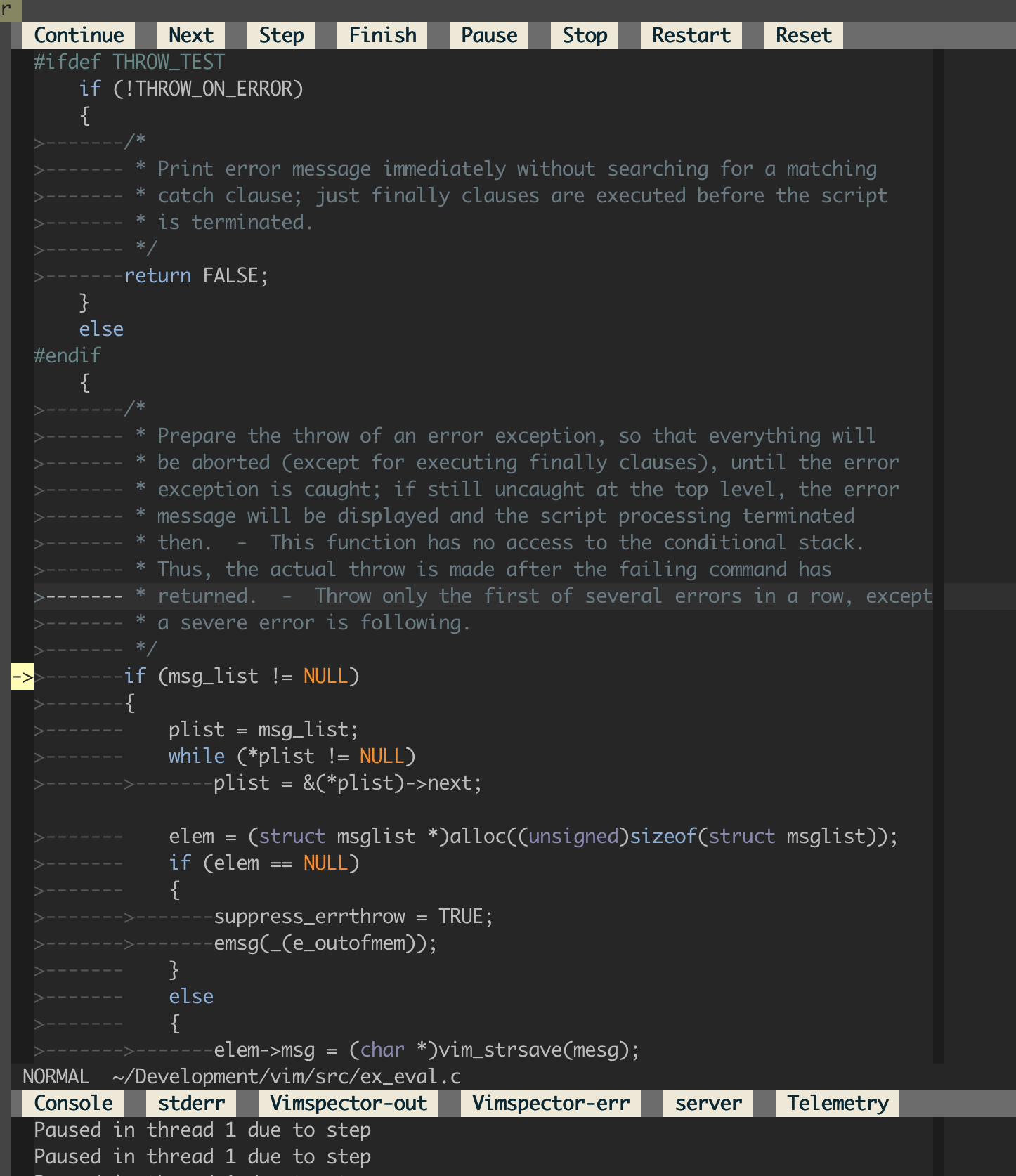
- Step in/out, finish, continue, pause etc. using the WinBar, or mappings.
- If you really want to, the API is
vimspector#StepInto()etc.
Variables and scopes
- Current scope shows values of locals.
- Use
<CR>to expand/collapse (+, -). - When changing the stack frame the locals window updates.
- While paused, hover to see values
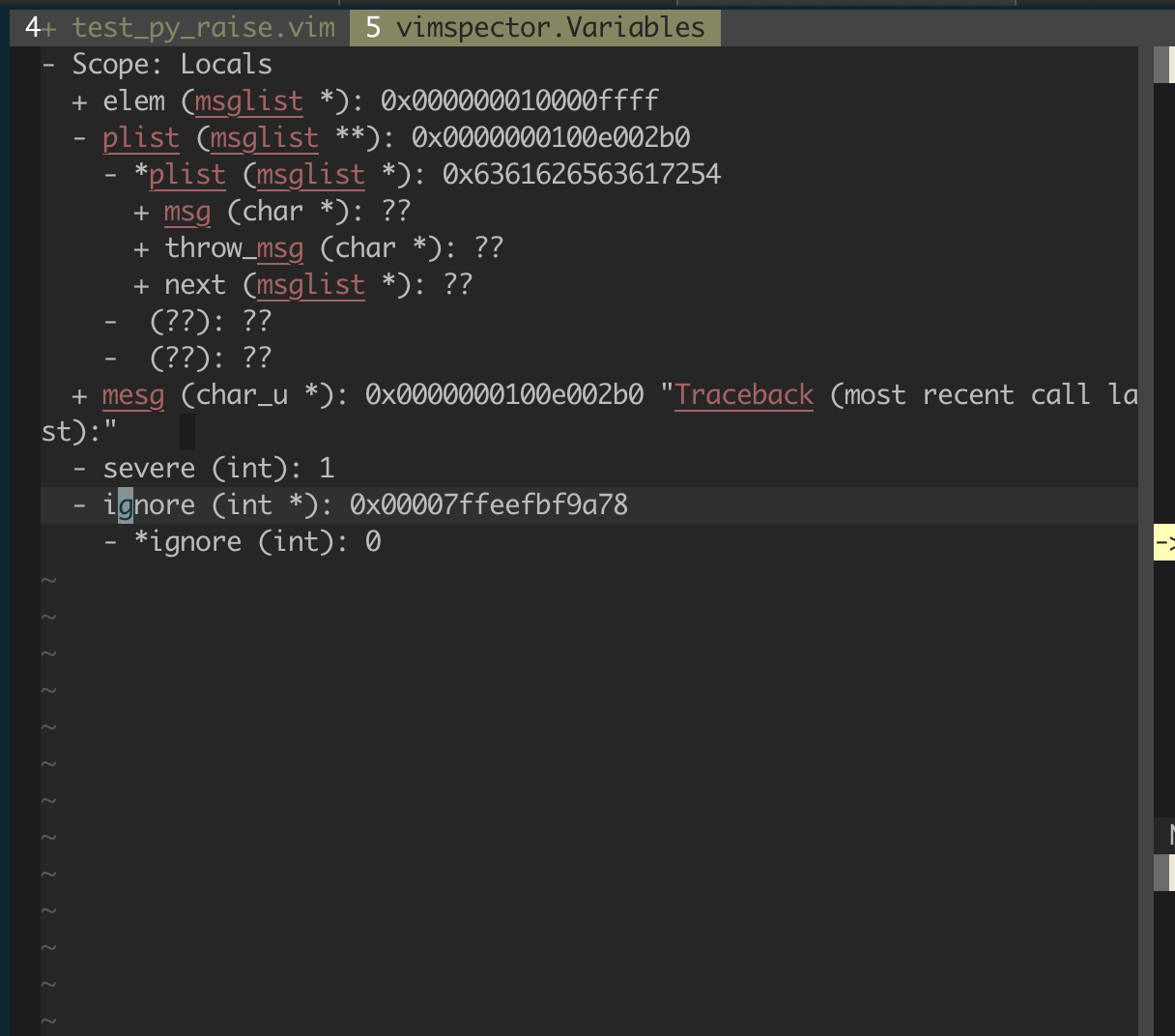
Scopes and variables are represented by the buffer vimspector.Variables.
Watches
The watches window is a prompt buffer, where that's available. Enter insert mode to add a new watch expression.
- Add watches to the variables window by entering insert mode and
typing the expression. Commit with
<CR>. - Alternatively, use
:VimspectorWatch <expression>. Tab-completion for expression is available in some debug adapters. - Expand result with
<CR>. - Delete with
<DEL>.
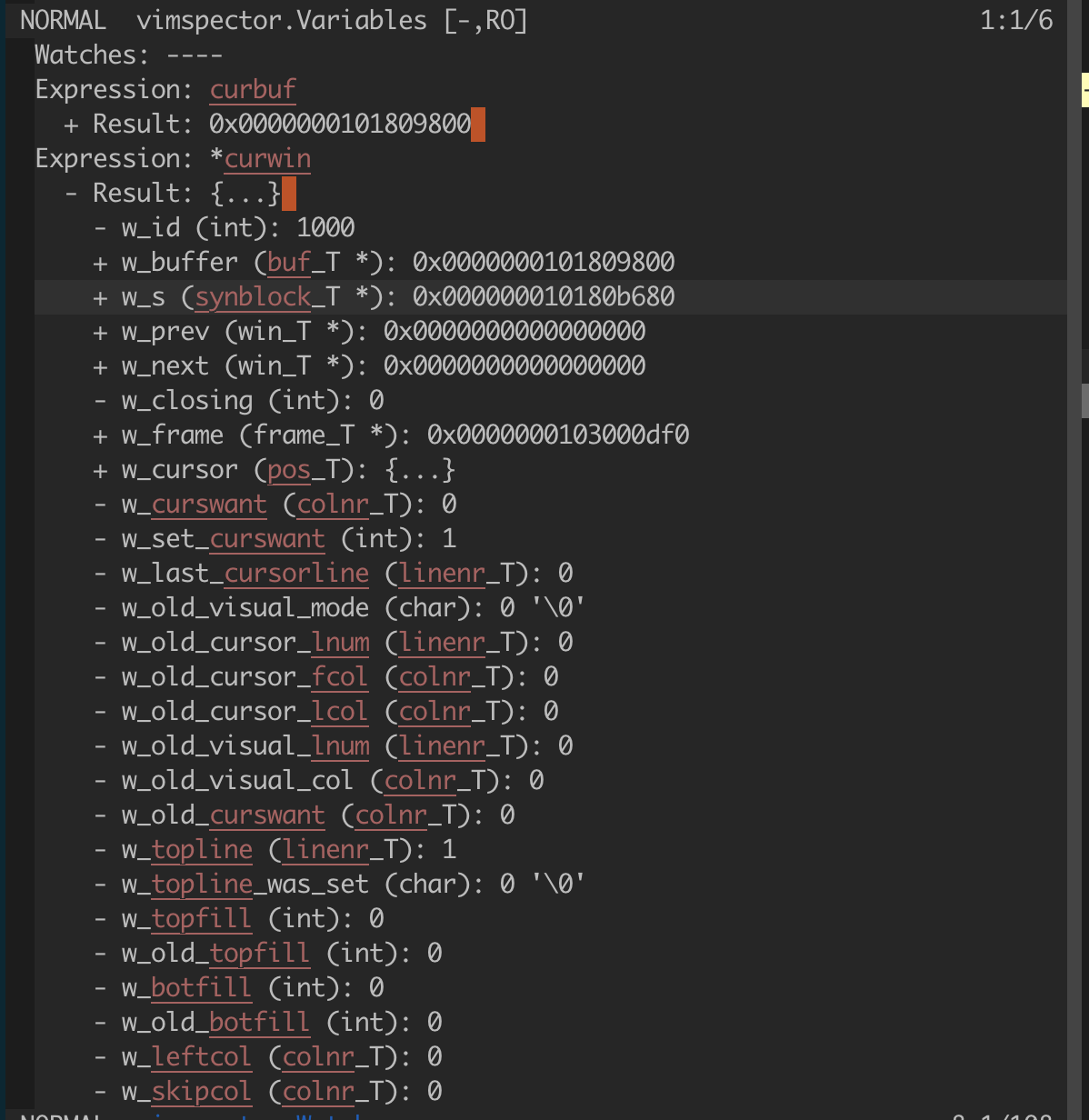
The watches are represented by the buffer vimspector.StackTrace.
Stack Traces
- In the threads window, use
<CR>to expand/collapse. - Use
<CR>on a stack frame to jump to it.
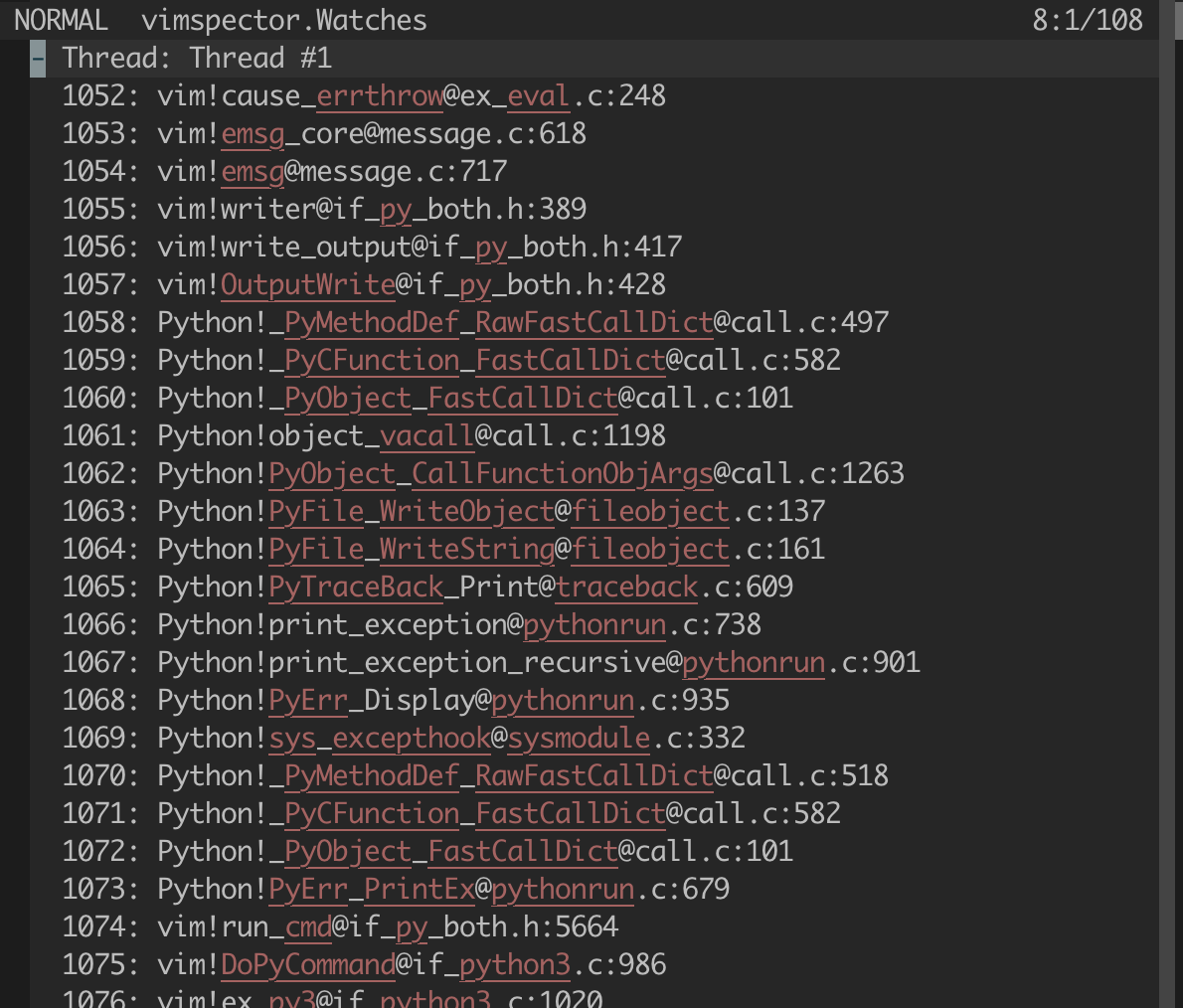
The stack trace is represented by the buffer vimspector.StackTrace.
Program Output
- In the outputs window use the WinBar to select the output channel.
- Alternatively, use
:VimspectorShowOutput <category>. Use command-line completion to see the categories. - The debugee prints to the stdout channel.
- Other channels may be useful for debugging.
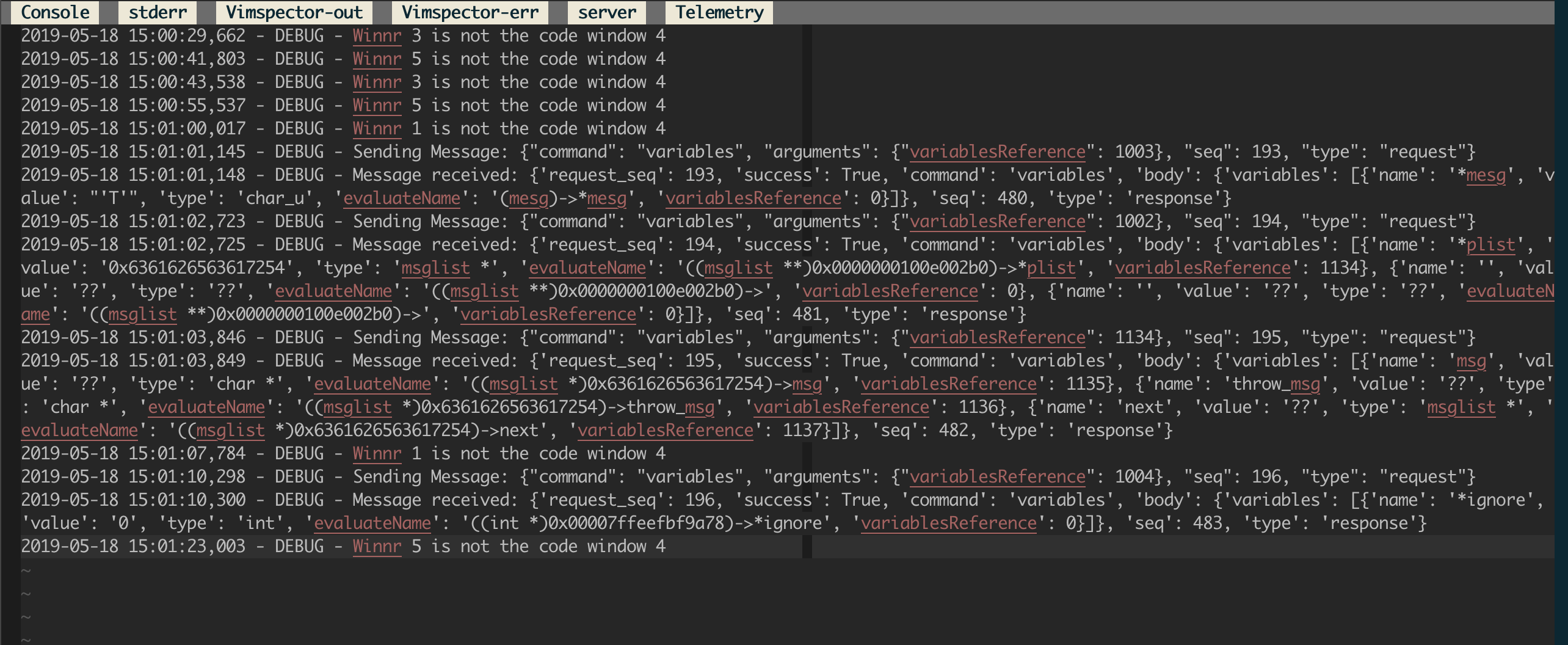
If the output window is closed, a new one can be opened with
:VimspectorShowOutput <category> (use tab-completion - wildmenu to see the
options).
Console
The console window is a prompt buffer, where that's available, and can be used as an interactive CLI for the debug adapter. Support for this varies amongt adapters.
- Enter insert mode to enter a command to evaluate.
- Alternatively,
:VimspectorEval <expression>. Completion is available with some debug adapters. - Commit the request with
<CR> - The request and subsequent result are printed.
NOTE: See also Watches above.
If the output window is closed, a new one can be opened with
:VimspectorShowOutput Console.
Closing debugger
To close the debugger, use:
ResetWinBar button (set mouse=a):VimspectorResetwhen the WinBar is not available.call vimspector#Reset()
Debug adapter configuration
For an introduction to the configuration of .vimspector.json, take a look at
the Getting Started section of the Vimspector website.
For full explanation, including how to use variables, substitutions and how to specify exception breakpoints, see the docs.
The JSON configuration file allows C-style comments:
// comment to end of line .../* inline comment ... */
Current tested with the following debug adapters.
C, C++, Rust, etc.
- C++: vscode-cpptools
Example .vimspector.json (works with both vscode-cpptools and lldb-vscode.
For lldb-vscode replace the name of the adapter with lldb-vscode:
- vscode-cpptools Linux/MacOS:
{
  "configurations": {
    "Launch": {
      "adapter": "vscode-cpptools",
      "configuration": {
        "request": "launch",
        "program": "<path to binary>",
        "args": [ ... ],
        "cwd": "<working directory>",
        "environment": [ ... ],
        "externalConsole": true,
        "MIMode": "<lldb or gdb>"
      }
    },
    "Attach": {
      "adapter": "vscode-cpptools",
      "configuration": {
        "request": "attach",
        "program": "<path to binary>",
        "MIMode": "<lldb or gdb>"
      }
    }
    ...
  }
}
- vscode-cpptools Windows
NOTE FOR WINDOWS USERS: You need to install gdb.exe. I recommend using
scoop install gdb. Vimspector cannot use the visual studio debugger due to
licensing.
{
  "configurations": {
    "Launch": {
      "adapter": "vscode-cpptools",
      "configuration": {
        "request": "launch",
        "program": "<path to binary>",
        "stopAtEntry": true
      }
    }
  }
}
- lldb-vscode (MacOS)
An alternative is to to use lldb-vscode, which comes with llvm. Here's how:
- Install llvm (e.g. with HomeBrew:
brew install llvm) - Create a file named
/path/to/vimspector/gadgets/macos/.gadgets.d/lldb-vscode.json:
{
  "adapters": {
    "lldb-vscode": {
      "variables": {
        "LLVM": {
          "shell": "brew --prefix llvm"
        }
      },
      "attach": {
        "pidProperty": "pid",
        "pidSelect": "ask"
      },
      "command": [
        "${LLVM}/bin/lldb-vscode"
      ],
      "env": {
        "LLDB_LAUNCH_FLAG_LAUNCH_IN_TTY": "YES"
      },
      "name": "lldb"
    }
  }
}
Remote debugging
The cpptools documentation describes how to attach cpptools to gdbserver using
miDebuggerAddress. Note that when doing this you should use the
"request": "attach".
Remote launch and attach
If you're feeling fancy, checkout the reference guide for an example of getting Vimspector to remotely launch and attach.
Python
- Python: debugpy
- Requires
install_gadget.py --enable-python, ideally requires a working compiler and the python development headers/libs to build a C python extension for performance. - Full options: https://github.com/microsoft/debugpy/wiki/Debug-configuration-settings
Migrating from vscode-python: change "adapter": "vscode-python" to
"adapter": "debugpy".
{
  "configurations": {
    "<name>: Launch": {
      "adapter": "debugpy",
      "configuration": {
        "name": "<name>: Launch",
        "type": "python",
        "request": "launch",
        "cwd": "<working directory>",
        "python": "/path/to/python/interpreter/to/use",
        "stopOnEntry": true,
        "console": "externalTerminal",
        "debugOptions": [],
        "program": "<path to main python file>"
      }
    }
    ...
  }
}
Remote Debugging
In order to use remote debugging with debugpy, you have to connect Vimspector directly to the application that is being debugged. This is easy, but it's a little different from how we normally configure things. Specifically, you need to:
- Start your application with debugpy, specifying the
--listenargument. See the debugpy documentation for details. - use the built-in "multi-session" adapter. This just asks for the host/port to connect to. For example:
{
  "configurations": {
    "Python Attach": {
      "adapter": "multi-session",
      "configuration": {
        "request": "attach",
        "pathMappings": [
          // mappings here (optional)
        ]
      }
    }
  }
}
See deatils of the launch
configuration
for explanation of things like pathMappings.
Additional documenation, including how to do this when the remote machine can only be contacted via SSH are provided by debugpy.
Remote launch and attach
If you're feeling fancy, checkout the reference guide for an example of getting Vimspector to remotely launch and attach.
Legacy: vscode-python
- No longer installed by default - please pass
--force-enable-python.legacyif you just want to continue using your working setup. - vscode-python
- NOTE: You must be running
node10. See this issue
{
  "configurations": {
    "<name>: Launch": {
      "adapter": "vscode-python",
      "configuration": {
        "name": "<name>: Launch",
        "type": "python",
        "request": "launch",
        "cwd": "<working directory>",
        "stopOnEntry": true,
        "console": "externalTerminal",
        "debugOptions": [],
        "program": "<path to main python file>"
      }
    }
    ...
  }
}
TCL
- TCL (TclProDebug)
See my fork of TclProDebug for instructions.
C♯
- C# - dotnet core
Requires install_gadget.py --force-enable-csharp
{
  "configurations": {
    "launch - netcoredbg": {
      "adapter": "netcoredbg",
      "configuration": {
        "request": "launch",
        "program": "${workspaceRoot}/bin/Debug/netcoreapp2.2/csharp.dll",
        "args": [],
        "stopAtEntry": true
      }
    }
  }
}
- C# - mono
Requires install_gadget.py --force-enable-csharp.
Known not to work.
{
  "configurations": {
    "launch - mono": {
      "adapter": "vscode-mono-debug",
      "configuration": {
        "request": "launch",
        "program": "${workspaceRoot}/bin/Debug/netcoreapp2.2/csharp.dll",
        "args": [],
        "cwd": "${workspaceRoot}",
        "runtimeExecutable": "mono",
        "runtimeArgs": [],
        "env": [],
        "externalConsole": false,
        "console": "integratedTerminal"
      }
    }
  }
}
Go
- Go
Requires:
install_gadget.py --enable-go- Delve installed, e.g.
go get -u github.com/go-delve/delve/cmd/dlv - Delve to be in your PATH, or specify the
dlvToolPathlaunch option
{
  "configurations": {
    "run": {
      "adapter": "vscode-go",
      "configuration": {
        "request": "launch",
        "program": "${fileDirname}",
        "mode": "debug",
        "dlvToolPath": "$HOME/go/bin/dlv"
      }
    }
  }
}
PHP
This uses the php-debug, see https://marketplace.visualstudio.com/items?itemName=felixfbecker.php-debug
Requires:
- (optional) Xdebug helper for chrome https://chrome.google.com/webstore/detail/xdebug-helper/eadndfjplgieldjbigjakmdgkmoaaaoc
install_gadget.py --force-enable-php- configured php xdebug extension
zend_extension=xdebug.so
xdebug.remote_enable=on
xdebug.remote_handler=dbgp
xdebug.remote_host=localhost
xdebug.remote_port=9000
replace localhost with the ip of your workstation.
lazy alternative
zend_extension=xdebug.so
xdebug.remote_enable=on
xdebug.remote_handler=dbgp
xdebug.remote_connect_back=true
xdebug.remote_port=9000
- .vimspectory.json
{
  "configurations": {
    "Listen for XDebug": {
      "adapter": "vscode-php-debug",
      "configuration": {
        "name": "Listen for XDebug",
        "type": "php",
        "request": "launch",
        "port": 9000,
        "stopOnEntry": false,
        "pathMappings": {
          "/var/www/html": "${workspaceRoot}"
        }
      }
    },
    "Launch currently open script": {
      "adapter": "vscode-php-debug",
      "configuration": {
        "name": "Launch currently open script",
        "type": "php",
        "request": "launch",
        "program": "${file}",
        "cwd": "${fileDirname}",
        "port": 9000
      }
    }
  }
}
Debug web application
append XDEBUG_SESSION_START=xdebug to your query string
curl "http://localhost?XDEBUG_SESSION_START=xdebug"
or use the previously mentioned Xdebug Helper extension (which sets a XDEBUG_SESSION cookie)
Debug cli application
export XDEBUG_CONFIG="idekey=xdebug"
php <path to script>
JavaScript, TypeScript, etc.
- Node.js
Requires:
install_gadget.py --force-enable-node- For installation, a Node.js environemt that is < node 12. I believe this is an
incompatibility with gulp. Advice, use [nvm][] with
nvm install --lts 10; nvm use --lts 10; ./install_gadget.py --force-enable-node ... - Options described here: https://code.visualstudio.com/docs/nodejs/nodejs-debugging
- Example:
support/test/node/simple
{
  "configurations": {
    "run": {
      "adapter": "vscode-node",
      "configuration": {
        "request": "launch",
        "protocol": "auto",
        "stopOnEntry": true,
        "console": "integratedTerminal",
        "program": "${workspaceRoot}/simple.js",
        "cwd": "${workspaceRoot}"
      }
    }
  }
}
- Chrome
This uses the chrome debugger, see https://marketplace.visualstudio.com/items?itemName=msjsdiag.debugger-for-chrome.
It allows you to debug scripts running inside chrome from within Vim.
./install_gadget.py --force-enable-chrome- Example:
support/test/chrome
{
  "configurations": {
    "launch": {
      "adapter": "chrome",
      "configuration": {
        "request": "launch",
        "url": "http://localhost:1234/",
        "webRoot": "${workspaceRoot}/www"
      }
    }
  }
}
Java
Vimsepctor works well with the java debug server, which runs as a jdt.ls (Java Language Server) plugin, rather than a standalone debug adapter.
Vimspector is not in the business of running language servers, only debug adapters, so this means that you need a compatible Language Server Protocol editor plugin to use Java. I recommend YouCompleteMe, which has full support for jdt.ls, and most importantly a trivial way to load the debug adapter and to use it with Vimspector.
Usage with YouCompleteMe
- Set up [YCM for java][YcmJava].
- Get Vimspector to download the java debug plugin:
install_gadget.py --force-enable-java <other options...> - Configure Vimspector for your project using the
vscode-javaadapter, e.g.:
{
  "configurations": {
    "Java Attach": {
      "adapter": "vscode-java",
      "configuration": {
        "request": "attach",
        "hostName": "${host}",
        "port": "${port}",
        "sourcePaths": [
          "${workspaceRoot}/src/main/java",
          "${workspaceRoot}/src/test/java"
        ]
      }
    }
  }
}
- Tell YCM to load the debugger plugin and create a mapping, such as
<leader><F5>to start the debug server and launch vimspector, e.g. in~/.vim/ftplugin/java.vim:
" Tell YCM where to find the plugin. Add to any existing values.
let g:ycm_java_jdtls_extension_path = [
  \ '</path/to/Vimspector/gadgets/<os>'
  \ ]

let s:jdt_ls_debugger_port = 0
function! s:StartDebugging()
  if s:jdt_ls_debugger_port <= 0
    " Get the DAP port
    let s:jdt_ls_debugger_port = youcompleteme#GetCommandResponse(
      \ 'ExecuteCommand',
      \ 'vscode.java.startDebugSession' )

    if s:jdt_ls_debugger_port == ''
       echom "Unable to get DAP port - is JDT.LS initialized?"
       let s:jdt_ls_debugger_port = 0
       return
     endif
  endif

  " Start debugging with the DAP port
  call vimspector#LaunchWithSettings( { 'DAPPort': s:jdt_ls_debugger_port } )
endfunction

nnoremap <silent> <buffer> <Leader><F5> :call <SID>StartDebugging()<CR>
You can then use <Leader><F5> to start debugging rather than just <F5>.
For the launch arguments, see the vscode document.
Other LSP clients
See this issue for more background.
Rust
Rust is supported with any gdb/lldb-based debugger. So it works fine with
vscode-cpptools and lldb-vscode above. However, support for rust is best in
CodeLLDB.
./install_gadget.py --force-enable-rust- Example:
support/test/rust/vimspector_test
{
  "configurations": {
    "launch": {
      "adapter": "CodeLLDB",
      "configuration": {
        "request": "launch",
        "program": "${workspaceRoot}/target/debug/vimspector_test"
      }
    }
  }
}
Other servers
- Java - vscode-javac. This works, but is not as functional as Java Debug Server. Take a look at this comment for instructions.
Customisation
There is very limited support for customistaion of the UI.
Changing the default signs
Vimsector uses the following signs internally. If they are defined before
Vimsector uses them, they will not be replaced. So to customise the signs,
define them in your vimrc.
vimspectorBP: A breakpoint.vimspectorBPDisabled: A disabled breakpointvimspectorPCThe program counter, i.e. current line.
For example, to use some unicode symbols, you could put this in your vimrc:
sign define vimspectorBP text=🔴 texthl=Normal
sign define vimspectorBPDisabled text=🔵 texthl=Normal
sign define vimspectorPC text=🔶 texthl=SpellBad
Changing the default window sizes
Please Note: This cusomiation API is unstable, meaning that it may change at any time. I will endeavour to reduce the impact of this and annouce changes in Gitter.
The following options control the default sizes of the UI windows (all of them are numbers)
g:vimspector_sidebar_width(default: 50 columns): The width in columns of the left utility windows (variables, watches, stack trace)g:vimspector_bottombar_height(default 10 lines): The height in rows of the output window below the code window.
Example:
let g:vimspector_sidebar_width = 75
let g:vimspector_bottombar_height = 15
Changing the terminal size
The terminal is typically created as a vertical split to the righ of the code window, and that window is re-used for subsequent terminal buffers. The following control the sizing of the terminal window used for debuggee input/output when using Vim's built-in terminal.
g:vimspector_code_minwidth(default: 82 columns): Minimum number of columns to try and maintain for the code window when splitting to create the terminal window.g:vimspector_terminal_maxwidth(default: 80 columns): Maximum number of columns to use for the terminal.g:vimspector_terminal_minwidth(default: 10 columns): Minimum number of columns to use when it is not possible to fitg:vimspector_terminal_maxwidthcolumns for the terminal.
That's a lot of options, but essentially we try to make sure that there are at
least g:vimspector_code_minwidth columns for the main code window and that the
terminal is no wider than g:vimspector_terminal_maxwidth columns.
g:vimspector_terminal_minwidth is there to ensure that there's a reasonable
number of columns for the terminal even when there isn't enough horizontal space
to satisfy the other contraints.
Example:
let g:vimspector_code_minwidth = 90
let g:vimspector_terminal_maxwidth = 75
let g:vimspector_terminal_minwidth = 20
Advanced UI customisation
Please Note: This cusomiation API is unstable, meaning that it may change at any time. I will endeavour to reduce the impact of this and annouce changes in Gitter.
The above customisation of window sizes is limited intentionally to keep things
simple. Vimspector also provides a way for you to customise the UI without
restrictions, by running a User autocommand just after creating the UI or
opening the terminal. This requires you to write some vimscript, but allows you
to do things like:
- Hide a particular window or windows
- Move a particular window or windows
- Resize windows
- Have multiple windows for a particular buffer (say, you want 2 watch windows)
- etc.
You can essentially do anything you could do manually by writing a little vimscript code.
The User autocommand is raised with pattern set with the following values:
VimspectorUICreated: Just after setting up the UI for a debug sessionVimspectorTerminalOpened: Just after opening the terminal window for program input/output.
The following global variable is set up for you to get access to the UI
elements: g:vimspector_session_windows. This is a dict with the following
keys:
g:vimspector_session_windows.tagpage: The tab page for the sessiong:vimspector_session_windows.variables: Window ID of the variables window, containing thevimspector.Variablesbuffer.g:vimspector_session_windows.watches: Window ID of the watches window, containng thevimspector.Watchesbuffer.g:vimspector_session_windows.stack_trace: Window ID of the stack trade window containing thevimspector.StackTracebuffer.g:vimspector_session_windows.code: Window ID of the code window.g:vimspector_session_windows.output: Window ID of the output window.
In addition, the following key is added when triggering the
VimspectorTerminalOpened event:
g:vimspector_session_windows.terminal: Window ID of the terminal window
Example
There is some example code in support/custom_ui_vimrc showing how you can use
the window IDs to modify various aspects of the UI using some basic vim
commands, primarily win_gotoid funciton and the wincmd ex command.
To try this out vim -Nu support/custom_ui_vimrc <some file>.
Here's a rather smaller example. A simple way to use this is to drop it into a
file named my_vimspector_ui.vim in ~/.vim/plugin (or paste into your
vimrc):
" Set the basic sizes
let g:vimspector_sidebar_width = 80
let g:vimspector_code_minwidth = 85
let g:vimspector_terminal_minwidth = 75

function! s:CustomiseUI()
  " Customise the basic UI...

  " Close the output window
  call win_gotoid( g:vimspector_session_windows.output )
  q
endfunction

function s:SetUpTerminal()
  " Customise the terminal window size/position
  " For some reasons terminal buffers in Neovim have line numbers
  call win_gotoid( g:vimspector_session_windows.terminal )
  set norelativenumber nonumber
endfunction

augroup MyVimspectorUICustomistaion
  autocmd!
  autocmd User VimspectorUICreated call s:CustomiseUI()
  autocmd User VimspectorTerminalOpened call s:SetUpTerminal()
augroup END
FAQ
- Q: Does it work? A: Yeah. It's a bit unpolished.
- Q: Does it work with this language? A: Probably, but it won't
necessarily be easy to work out what to put in the
.vimspector.json. As you can see above, some of the servers aren't really editor agnostic, and require very-specific unique handling. - How do I stop it starting a new Terminal.app on macOS? See this comment
- Can I specify answers to the annoying questions about exception breakpoints
in my
.vimspector.json? Yes, see here. - Do I have to specify the file to execute in
.vimspector.json, or could it be the current vim file? You don't need to. You can specify $file for the current active file. See here for complete list of replacements in the configuration file. - You allow comments in
.vimspector.json, but Vim highlights these as errors, do you know how to make this not-an-error? Yes, put this in~/.vim/after/syntax/json.vim:
syn region jsonComment start="/\*" end="\*/"
hi link jsonCommentError Comment
hi link jsonComment Comment
Motivation
A message from the author about the motivation for this plugin:
Many development environments have a built-in debugger. I spend an inordinate amount of my time in Vim. I do all my development in Vim and I have even customised my workflows for building code, running tests etc.
For many years I have observed myself, friends and colleagues have been writing
printf,puts,I truly believe that interactive, graphical debugging environments are the best way to understand and reason about both unfamiliar and familiar code, and that the lack of ready, simple access to a debugger is a huge hidden productivity hole for many.
Don't get me wrong, I know there are literally millions of developers out there that are more than competent at developing without a graphical debugger, but I maintain that if they had the ability to just press a key and jump into the debugger, it would be faster and more enjoyable that just cerebral code comprehension.
I created Vimsepctor because I find changing tools frustrating.
gdbfor c++,pdbfor python, etc. Each has its own syntax. Each its own lexicon. Each its own foibles.I designed the configuration system in such a way that the configuration can be committed to source control so that it just works for any of your colleagues, friends, collaborators or complete strangers.
I made remote debugging a first-class feature because that's a primary use case for me in my job.
With Vimspector I can just hit
<F5>in all of the languages I develop in and debug locally or remotely using the exact same workflow, mappings and UI. I have integrated this with my Vim in such a way that I can hit a button and run the test under the cursor in Vimspector. This kind of integration has massively improved my workflow and productivity. It's even made the process of learning a new codebase... fun.- Ben Jackson, Creator.
License
Copyright © 2018 Ben Jackson
Sponsorship
If you like Vimspector so much that you're wiling to part with your hard-earned cash, please consider donating to one of the following charities, which are meaningful to the author of Vimspector (in order of prefernce):
- Greyhound Rescue Wales
- Cancer Research UK
- ICCF Holland
- Any charity of your choosing.