
5.8 KiB
Guidelines
Component
A component is a self-contained and reusable building block in software development. It is a modular unit that performs a specific function or task within a larger system. They are created to provide a convenient and straightforward way to work with language models.
Component **agents** can refer to an entity that is capable of performing actions or making decisions autonomously or on behalf of someone or something else. In the case of a language model like ChatGPT, the model itself can be considered an agent as it can generate responses and interact with users based on the input it receives.
If want to learn more about the components and how they work, make sure to check out the LangChain [documentation](https://docs.langchain.com/docs/category/components){.internal-link target=\_blank} section.
Component's Features
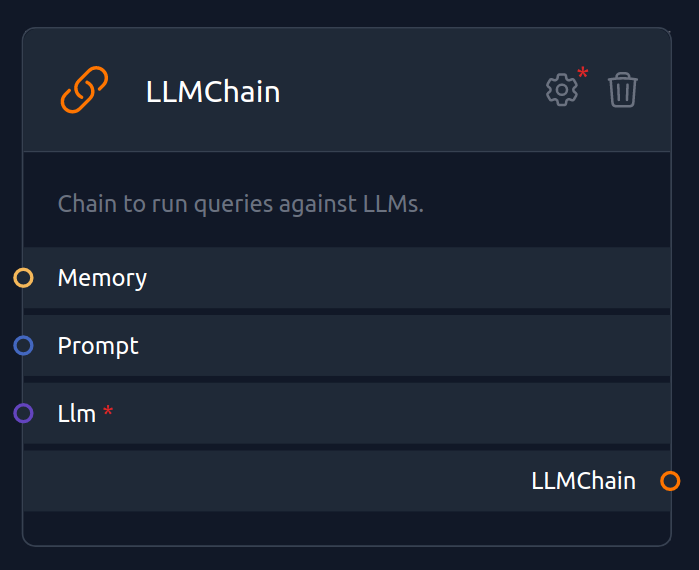
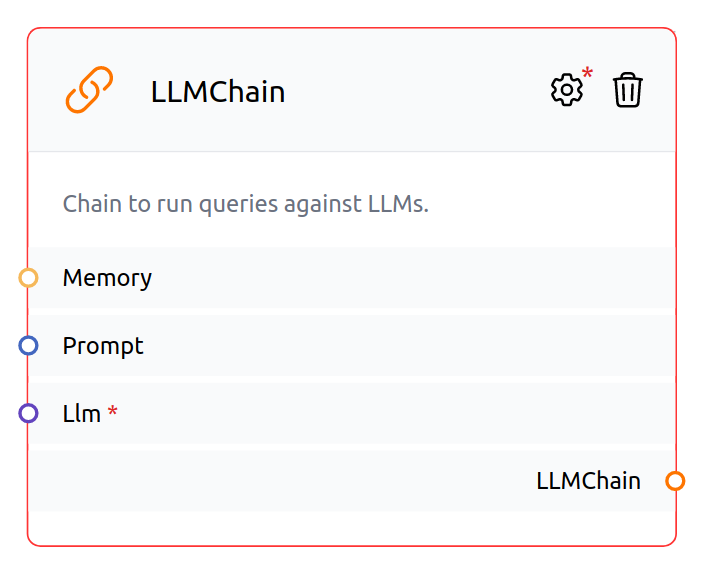
During the flow creation process, you will notice a colored circle o. Components marked with a red asterisk * must be connected. If you don't connect it, a red line will appear around it. Make the necessary connections to make your flow work. Hovering over the small circle will reveal the component that needs to be connected.
In some components, at the top of it, you will see a small gear icon ⚙️, which you can click to edit the parameters. You also have the option to delete it by clicking the trash can icon 🗑️.
 {width=50%}
 {width=50%}
Features
Located in the right top corner of the screen there are some features that you can use, such as Code, Import, Export, Dark Mode and Notification, as you can see in the image below:
 {width=60%}
 {width=60%}
Further down, we will explain each of these features.
Code
 {width=60%}
 {width=60%}
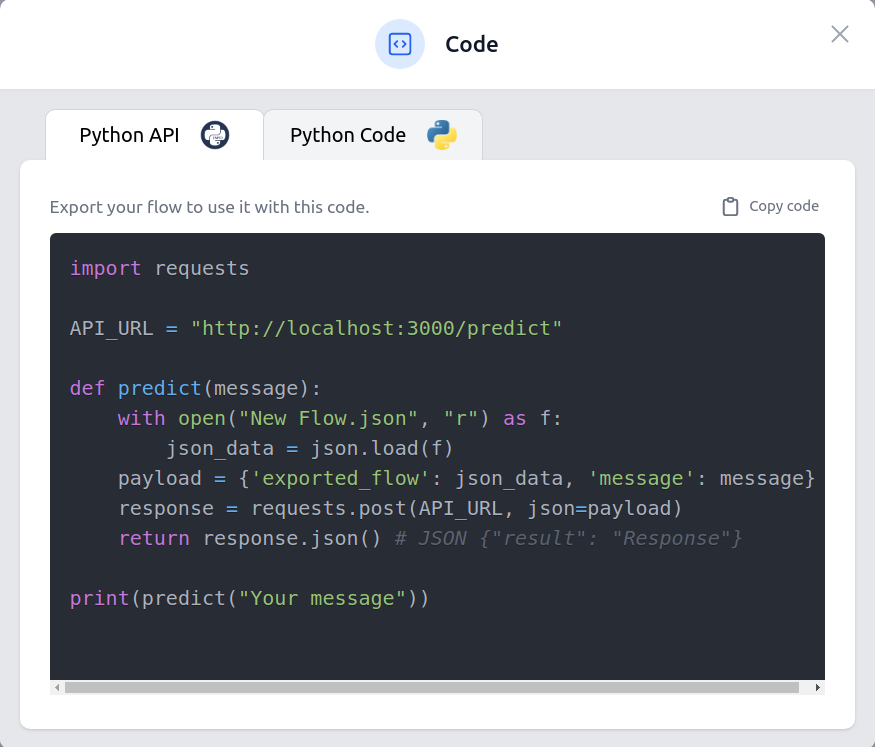
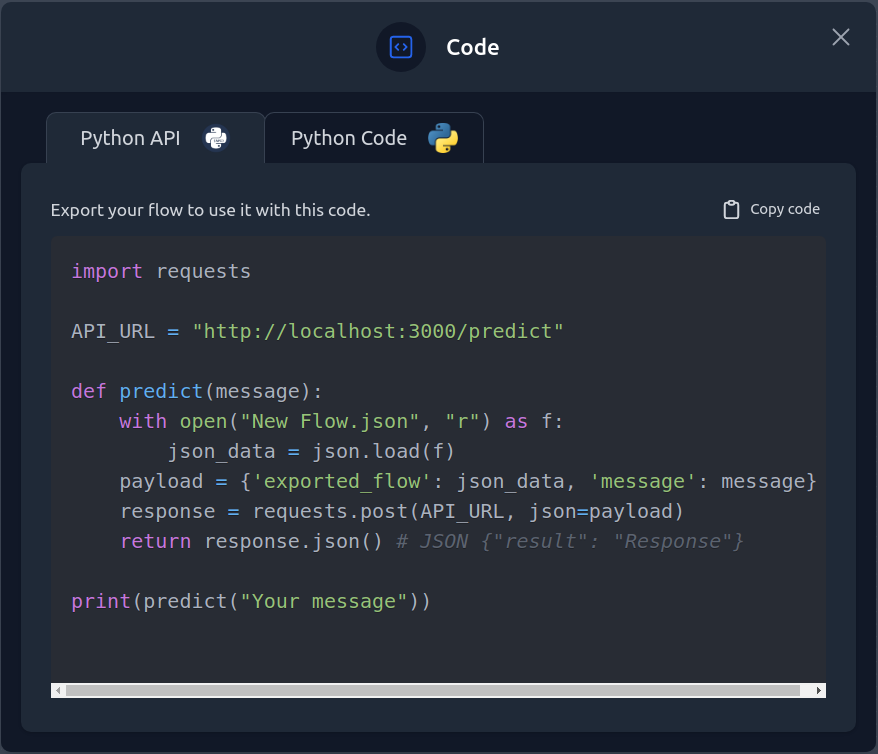
API Access: Export Your Flow for Code Usage. The API Access feature allows you to export your flow from the platform and utilize it with your own code. This feature provides two different tabs within the platform, the first being the "Python API" tab and the second being the "Python Code" tab. Each tab offers a unique set of functionalities to integrate the exported flow into your codebase seamlessly.
Python API Tab:
To access the Python API tab, you can utilize the code snippet in the first tab. You can import the required libraries and define a predict function. This function takes a message as input and performs the following steps:
- Opens the "
Conversation_buffer_memory.json" file, which contains the exported flow information. - Constructs a payload consisting of the exported flow data and the input message.
- Sends a POST request to the specified API URL with the payload as JSON.
- Returns the response as a JSON object, which includes the predicted result.
Python Code Tab:
To access the Python Code tab, you can utilize the code snippet in the secon tab. You can import the load_flow_from_json function from the "langflow" library. This function loads the exported flow from the "Conversation_buffer_memory.json" file and assigns it to the variable flow. Once the flow is loaded, you can use it as a chain to process input messages. In the provided example, the flow variable is used to process the message "Hey, have you heard of LangFlow?".
By utilizing the Python Code tab, you can seamlessly integrate the exported flow into your code and leverage its capabilities for natural language processing tasks.
The API Access feature empowers you to leverage the full potential of your exported flow by seamlessly integrating it into your codebase. Whether you want to incorporate advanced conversational capabilities or automate specific tasks, this feature provides a flexible and efficient solution to enhance your conversational applications.
Import and Export
Flows can be exported and imported as JSON files. We already have some examples on Import option, check them out.
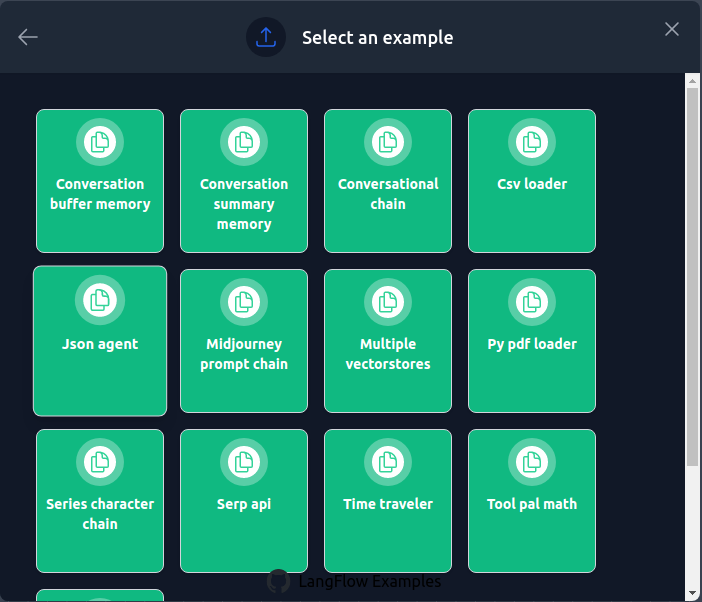 {width=50%}
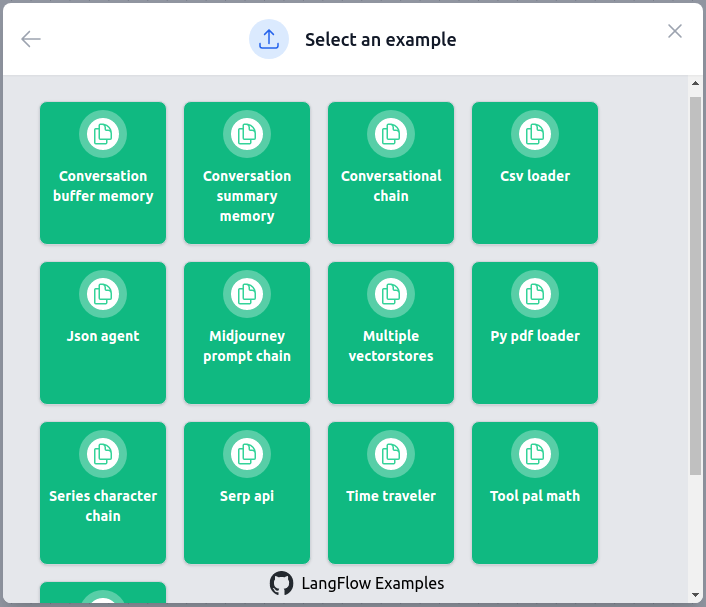 {width=50%}
The Export option allows you to export your flow setting a name and description. You have the option to save the file with your API keys.
| Import | Export |
|---|---|
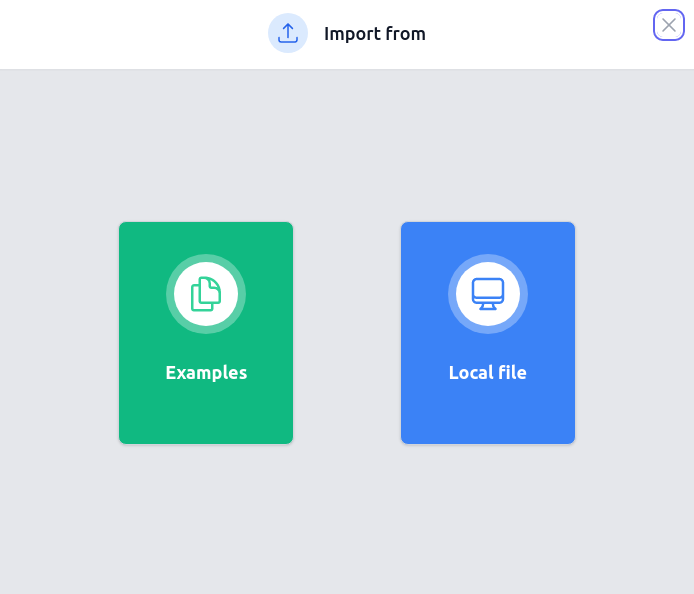 {width=100%} {width=100%}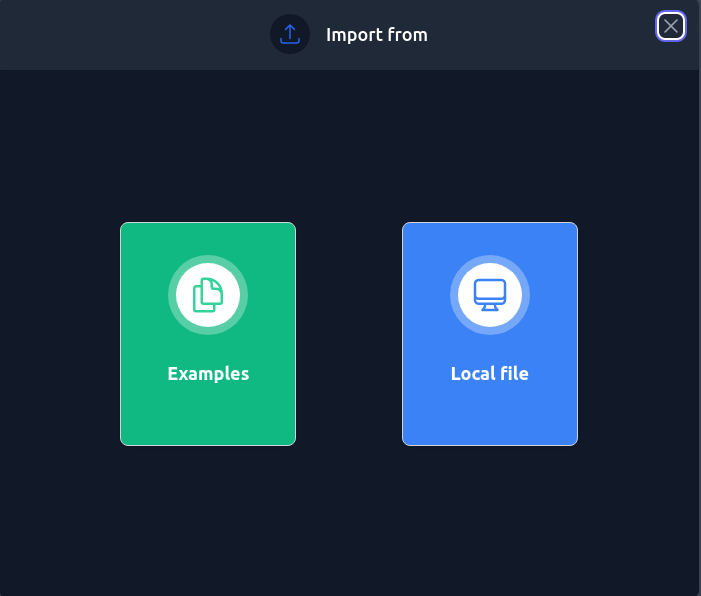 {width=100%} {width=100%} |
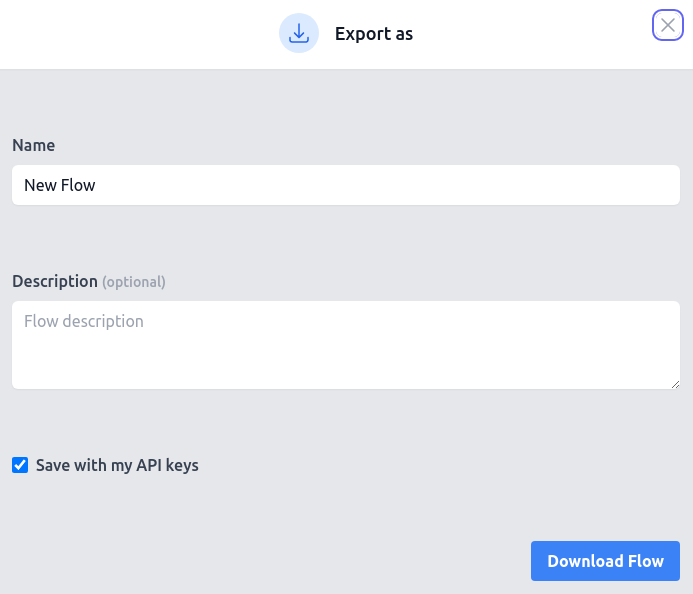 {width=100%} {width=100%} {width=100%} {width=100%} |
Dark Mode and Notifications
The background color can be set to dark 🌙 or light ☀️ mode. The bell icon 🔔 indicates that the component has a notification.
Chat
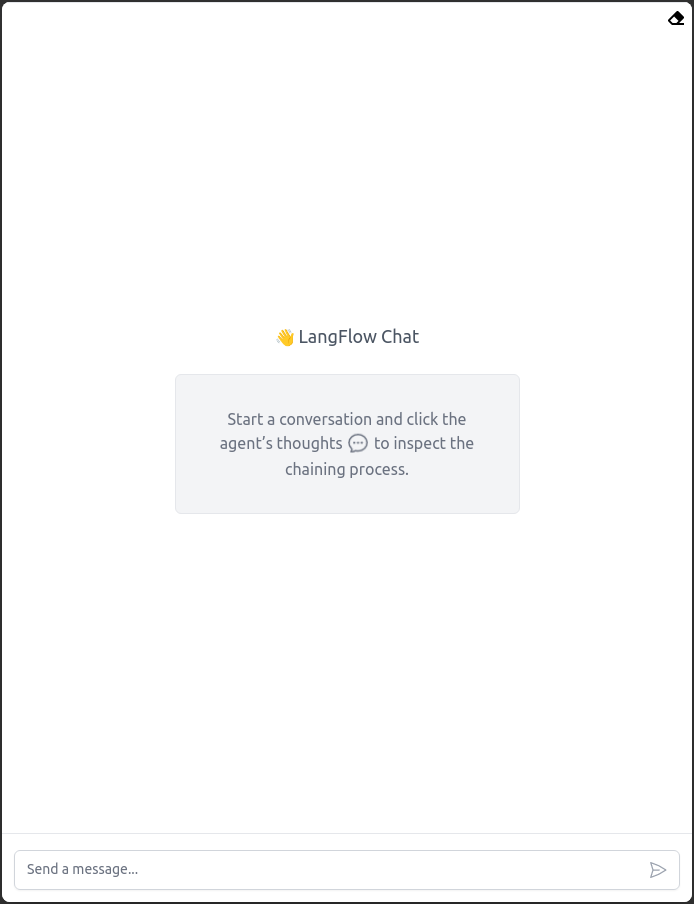
A chat icon 💬 located in the bottom right corner of the screen allows you to chat. When you click over 💬 a new screen will pop up. You can start a conversation by typing in the text box and pressing enter. The chat will respond to your message. In the top right corner of the screen, you will see an eraser icon  {width=2.5%}
  {width=2.5%}. Clicking on it will clear the chat history.
 {width=50%}
 {width=50%}