
20 KiB
| title | sidebar_position | slug |
|---|---|---|
| Custom Components | 8 | /components-custom-components |
Custom Components
Custom components are created within Langflow and extend the platform's functionality with custom, resusable Python code.
Since Langflow operates with Python behind the scenes, you can implement any Python function within a Custom Component. This means you can leverage the power of libraries such as Pandas, Scikit-learn, Numpy, and thousands of other packages to create components that handle data processing in unlimited ways. You can use any type as long as the type is properly annotated in the output methods (e.g., > list[int]).
Custom Components create reusable and configurable components to enhance the capabilities of Langflow, making it a powerful tool for developing complex processing between user and AI messages.
How to Create Custom Components
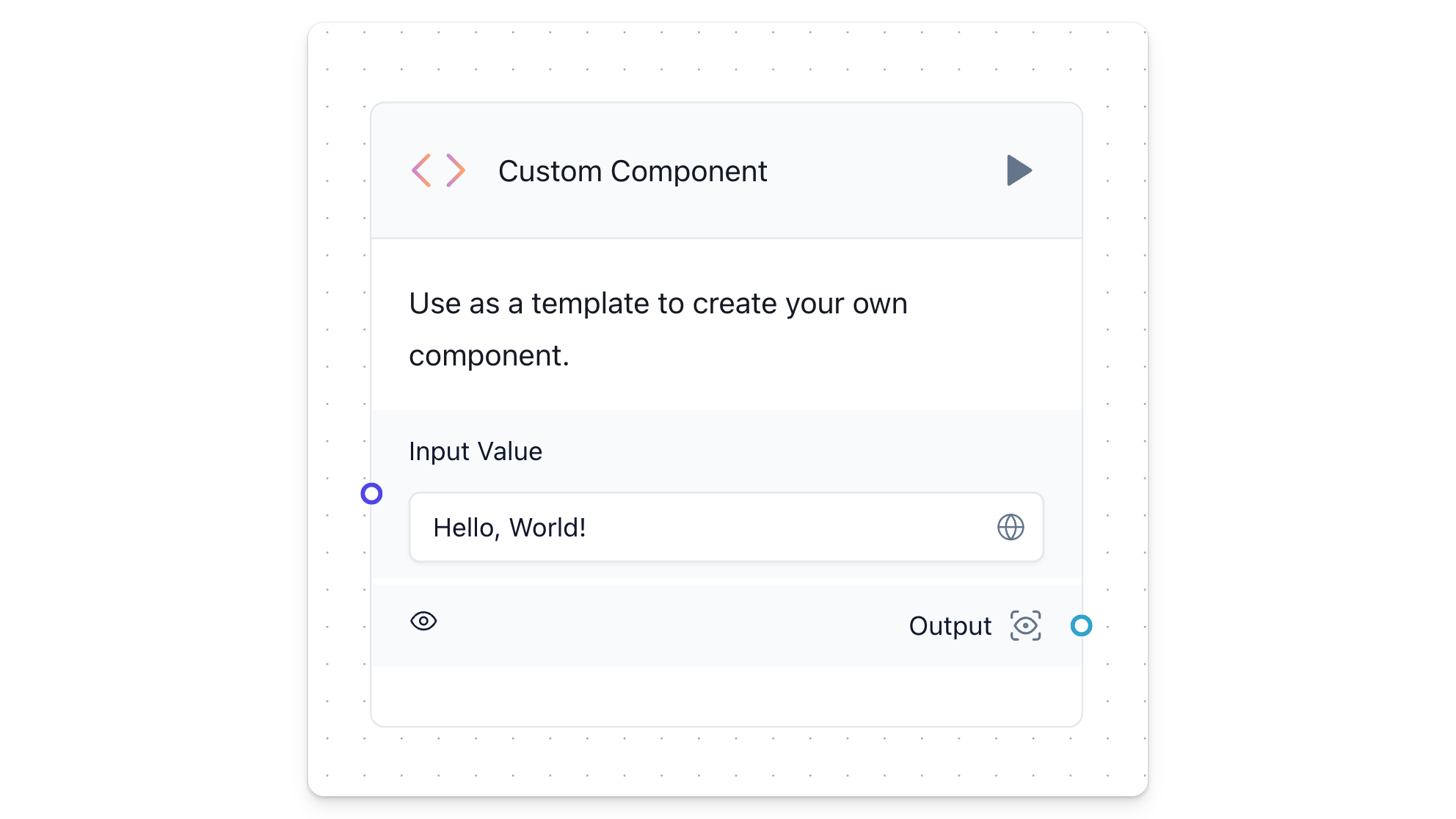
Creating custom components in Langflow involves creating a Python class that defines the component's functionality, inputs, and outputs. The default code provides a working structure for your custom component.
# from langflow.field_typing import Data
from langflow.custom import Component
from langflow.io import MessageTextInput, Output
from langflow.schema import Data


class CustomComponent(Component):
    display_name = "Custom Component"
    description = "Use as a template to create your own component."
    documentation: str = "http://docs.langflow.org/components/custom"
    icon = "custom_components"
    name = "CustomComponent"

    inputs = [
        MessageTextInput(name="input_value", display_name="Input Value", value="Hello, World!"),
    ]

    outputs = [
        Output(display_name="Output", name="output", method="build_output"),
    ]

    def build_output(self) -> Data:
        data = Data(value=self.input_value)
        self.status = data
        return data
You can create your class in your favorite text editor outside of Langflow and paste it in later, or just follow along in the code pane.
- In Langflow, from under Helpers, drag a Custom Component into the workspace.
- Open the component's code pane.
- Import dependencies.
Your custom component inherits from the langflow
Componentclass so you need to include it.
from langflow.custom import Component
from langflow.io import MessageTextInput, Output
from langflow.schema import Data
- Define the Class: Start by defining a Python class that inherits from
Component. This class will encapsulate the functionality of your custom component.
class CustomComponent(Component):
    display_name = "Custom Component"
    description = "Use as a template to create your own component."
    documentation: str = "http://docs.langflow.org/components/custom"
    icon = "custom_components"
    name = "CustomComponent"
- Specify Inputs and Outputs: Use Langflow's input and output classes to define the inputs and outputs of your component. They should be declared as class attributes.
    inputs = [
        MessageTextInput(name="input_value", display_name="Input Value", value="Hello, World!"),
    ]

    outputs = [
        Output(display_name="Output", name="output", method="build_output"),
    ]
- Implement Output Methods: Implement methods for each output, which contains the logic of your component. These methods can access input values using
self.<input_name>, return processed values and define what to be displayed in the component with theself.statusattribute.
    def build_output(self) -> Data:
        data = Data(value=self.input_value)
        self.status = data
        return data
- Use Proper Annotations: Ensure that output methods are properly annotated with their types. Langflow uses these annotations to validate and handle data correctly. For example, this method is annotated to output
Data.
def build_output(self) -> Data:
- Click Check & Save to confirm your component works. You now have an operational custom component.
Add inputs and modify output methods
This code defines a custom component that accepts 5 inputs and outputs a Message.
Copy and paste it into the Custom Component code pane and click Check & Save.
from langflow.custom import Component
from langflow.inputs import StrInput, MultilineInput, SecretStrInput, IntInput, DropdownInput
from langflow.template import Output, Input
from langflow.schema.message import Message

class MyCustomComponent(Component):
    display_name = "My Custom Component"
    description = "An example of a custom component with various input types."

    inputs = [
        StrInput(
            name="username",
            display_name="Username",
            info="Enter your username."
        ),
        SecretStrInput(
            name="password",
            display_name="Password",
            info="Enter your password."
        ),
        MessageTextInput(
            name="special_message",
            display_name="special_message",
            info="Enter a special message.",
        ),
        IntInput(
            name="age",
            display_name="Age",
            info="Enter your age."
        ),
        DropdownInput(
            name="gender",
            display_name="Gender",
            options=["Male", "Female", "Other"],
            info="Select your gender."
        )
    ]

    outputs = [
        Output(display_name="Result", name="result", method="process_inputs"),
    ]

    def process_inputs(self) -> Message:
        """
        Process the user inputs and return a Message object.

        Returns:
            Message: A Message object containing the processed information.
        """
        try:
            processed_text = f"User {self.username} (Age: {self.age}, Gender: {self.gender}) " \
                             f"sent the following special message: {self.special_message}"
            return Message(text=processed_text)
        except AttributeError as e:
            return Message(text=f"Error processing inputs: {str(e)}")
Since the component outputs a Message, you can wire it into a chat and pass messages to yourself.
Your Custom Component accepts the Chat Input message through MessageTextInput, fills in the variables with the process_inputs method, and finally passes the message User Username (Age: 49, Gender: Male) sent the following special message: Hello! to Chat Output.

By defining inputs this way, Langflow can automatically handle the validation and display of these fields in the user interface, making it easier to create robust and user-friendly custom components.
All of the types detailed above derive from a general class that can also be accessed through the generic Input class.
:::tip
Use MessageInput to get the entire Message object instead of just the text.
:::
Input Types
Langflow provides several higher-level input types to simplify the creation of custom components. These input types standardize how inputs are defined, validated, and used. Here’s a guide on how to use these inputs and their primary purposes:
HandleInput
Represents an input that has a handle to a specific type (e.g., BaseLanguageModel, BaseRetriever, etc.).
- Usage: Useful for connecting to specific component types in a flow.
DataInput
Represents an input that receives a Data object.
- Usage: Ideal for components that process or manipulate data objects.
- Input Types:
["Data"]
StrInput
Represents a standard string input field.
- Usage: Used for any text input where the user needs to provide a string.
- Input Types:
["Text"]
MessageInput
Represents an input field specifically for Message objects.
- Usage: Used in components that handle or process messages.
- Input Types:
["Message"]
MessageTextInput
Represents a text input for messages.
- Usage: Suitable for components that need to extract text from message objects.
- Input Types:
["Message"]
MultilineInput
Represents a text field that supports multiple lines.
- Usage: Ideal for longer text inputs where the user might need to write extended text.
- Input Types:
["Text"] - Attributes:
multiline=True
SecretStrInput
Represents a password input field.
- Usage: Used for sensitive text inputs where the input should be hidden (e.g., passwords, API keys).
- Attributes:
password=True - Input Types: Does not accept input types, meaning it has no input handles for previous nodes/components to connect to it.
IntInput
Represents an integer input field.
- Usage: Used for numeric inputs where the value should be an integer.
- Input Types:
["Integer"]
FloatInput
Represents a float input field.
- Usage: Used for numeric inputs where the value should be a floating-point number.
- Input Types:
["Float"]
BoolInput
Represents a boolean input field.
- Usage: Used for true/false or yes/no type inputs.
- Input Types:
["Boolean"]
NestedDictInput
Represents an input field for nested dictionaries.
- Usage: Used for more complex data structures where the input needs to be a dictionary.
- Input Types:
["NestedDict"]
DictInput
Represents an input field for dictionaries.
- Usage: Suitable for inputs that require a dictionary format.
- Input Types:
["Dict"]
DropdownInput
Represents a dropdown input field.
- Usage: Used where the user needs to select from a predefined list of options.
- Attributes:
optionsto define the list of selectable options. - Input Types:
["Text"]
FileInput
Represents a file input field.
- Usage: Used to upload files.
- Attributes:
file_typesto specify the types of files that can be uploaded. - Input Types:
["File"]
Generic Input
Langflow offers native input types, but you can use any type as long as they are properly annotated in the output methods (e.g., -> list[int]).
The Input class is highly customizable, allowing you to specify a wide range of attributes for each input field. It has several attributes that can be customized:
field_type: Specifies the type of field (e.g.,str,int). Default isstr.required: Boolean indicating if the field is required. Default isFalse.placeholder: Placeholder text for the input field. Default is an empty string.is_list: Boolean indicating if the field should accept a list of values. Default isFalse.show: Boolean indicating if the field should be shown. Default isTrue.multiline: Boolean indicating if the field should allow multi-line input. Default isFalse.value: Default value for the input field. Default isNone.file_types: List of accepted file types (for file inputs). Default is an empty list.file_path: File path if the field is a file input. Default isNone.password: Boolean indicating if the field is a password. Default isFalse.options: List of options for the field (for dropdowns). Default isNone.name: Name of the input field. Default isNone.display_name: Display name for the input field. Default isNone.advanced: Boolean indicating if the field is an advanced parameter. Default isFalse.input_types: List of accepted input types. Default isNone.dynamic: Boolean indicating if the field is dynamic. Default isFalse.info: Additional information or tooltip for the input field. Default is an empty string.real_time_refresh: Boolean indicating if the field should refresh in real-time. Default isNone.refresh_button: Boolean indicating if the field should have a refresh button. Default isNone.refresh_button_text: Text for the refresh button. Default isNone.range_spec: Range specification for numeric fields. Default isNone.load_from_db: Boolean indicating if the field should load from the database. Default isFalse.title_case: Boolean indicating if the display name should be in title case. Default isTrue.
Create a Custom Component with Generic Input
Here is an example of how to define inputs for a component using the Input class.
Copy and paste it into the Custom Component code pane and click Check & Save.
from langflow.template import Input, Output
from langflow.custom import Component
from langflow.field_typing import Text
from langflow.schema.message import Message
from typing import Dict, Any

class TextAnalyzerComponent(Component):
    display_name = "Text Analyzer"
    description = "Analyzes input text and provides basic statistics."

    inputs = [
        Input(
            name="input_text",
            display_name="Input Text",
            field_type="Message",
            required=True,
            placeholder="Enter text to analyze",
            multiline=True,
            info="The text you want to analyze.",
            input_types=["Text"]
        ),
        Input(
            name="include_word_count",
            display_name="Include Word Count",
            field_type="bool",
            required=False,
            info="Whether to include word count in the analysis.",
        ),
        Input(
            name="perform_sentiment_analysis",
            display_name="Perform Sentiment Analysis",
            field_type="bool",
            required=False,
            info="Whether to perform basic sentiment analysis.",
        ),
    ]

    outputs = [
        Output(display_name="Analysis Results", name="results", method="analyze_text"),
    ]

    def analyze_text(self) -> Message:
        # Extract text from the Message object
        if isinstance(self.input_text, Message):
            text = self.input_text.text
        else:
            text = str(self.input_text)

        results = {
            "character_count": len(text),
            "sentence_count": text.count('.') + text.count('!') + text.count('?')
        }

        if self.include_word_count:
            results["word_count"] = len(text.split())

        if self.perform_sentiment_analysis:
            # Basic sentiment analysis
            text_lower = text.lower()
            if "happy" in text_lower or "good" in text_lower:
                sentiment = "positive"
            elif "sad" in text_lower or "bad" in text_lower:
                sentiment = "negative"
            else:
                sentiment = "neutral"

            results["sentiment"] = sentiment

        # Convert the results dictionary to a formatted string
        formatted_results = "\n".join([f"{key}: {value}" for key, value in results.items()])

        # Return a Message object
        return Message(text=formatted_results)

# Define how to use the inputs and outputs
component = TextAnalyzerComponent()
In this custom component:
-
The
input_textinput is a required multi-line text field that accepts a Message object or a string. It's used to provide the text for analysis. -
The
include_word_countinput is an optional boolean field. When set to True, it adds a word count to the analysis results. -
The
perform_sentiment_analysisinput is an optional boolean field. When set to True, it triggers a basic sentiment analysis of the input text.
The component performs basic text analysis, including character count and sentence count (based on punctuation marks). If word count is enabled, it splits the text and counts the words. If sentiment analysis is enabled, it performs a simple keyword-based sentiment classification (positive, negative, or neutral).
Since the component inputs and outputs a Message, you can wire the component into a chat and see how the basic custom component logic interacts with your input.

Create a Custom Component with Multiple Outputs
In Langflow, custom components can have multiple outputs. Each output can be associated with a specific method in the component, allowing you to define distinct behaviors for each output path. This feature is particularly useful when you want to route data based on certain conditions or process it in multiple ways.
- Definition of Outputs: Each output is defined in the
outputslist of the component. Each output is associated with a display name, an internal name, and a method that gets called to generate the output. - Output Methods: The methods associated with outputs are responsible for generating the data for that particular output. These methods are called when the component is executed, and each method can independently produce its result.
This example component has two outputs:
process_data: Processes the input text (e.g., converts it to uppercase) and returns it.get_processing_function: Returns theprocess_datamethod itself to be reused in composition.
from typing import Callable
from langflow.custom import Component
from langflow.inputs import StrInput
from langflow.template import Output
from langflow.field_typing import Text

class DualOutputComponent(Component):
    display_name = "Dual Output"
    description = "Processes input text and returns both the result and the processing function."
    icon = "double-arrow"

    inputs = [
        StrInput(
            name="input_text",
            display_name="Input Text",
            info="The text input to be processed.",
        ),
    ]

    outputs = [
        Output(display_name="Processed Data", name="processed_data", method="process_data"),
        Output(display_name="Processing Function", name="processing_function", method="get_processing_function"),
    ]

    def process_data(self) -> Text:
        # Process the input text (e.g., convert to uppercase)
        processed = self.input_text.upper()
        self.status = processed
        return processed

    def get_processing_function(self) -> Callable[[], Text]:
        # Return the processing function itself
        return self.process_data
This example shows how to define multiple outputs in a custom component. The first output returns the processed data, while the second output returns the processing function itself.
The processing_function output can be used in scenarios where the function itself is needed for further processing or dynamic flow control. Notice how both outputs are properly annotated with their respective types, ensuring clarity and type safety.
Special Operations
Advanced methods and attributes offer additional control and functionality. Understanding how to leverage these can enhance your custom components' capabilities.
self.inputs: Access all defined inputs. Useful when an output method needs to interact with multiple inputs.self.outputs: Access all defined outputs. This is particularly useful if an output function needs to trigger another output function.self.status: Use this to update the component's status or intermediate results. It helps track the component's internal state or store temporary data.self.graph.flow_id: Retrieve the flow ID, useful for maintaining context or debugging.self.stop("output_name"): Use this method within an output function to prevent data from being sent through other components. This method stops next component execution and is particularly useful for specific operations where a component should stop from running based on specific conditions.
Contribute Custom Components to Langflow
See How to Contribute to contribute your custom component to Langflow.