
1060 lines
33 KiB
Markdown
1060 lines
33 KiB
Markdown
# vimspector - A multi language graphical debugger for Vim
|
|
|
|
For a tutorial and usage overview, take a look at the
|
|
[Vimspector website][website]
|
|
|
|
[](https://dev.azure.com/puremouron/Vimspector/_build/latest?definitionId=1&branchName=master) [](https://gitter.im/vimspector/Lobby?utm_source=badge&utm_medium=badge&utm_campaign=pr-badge)
|
|
|
|
<!--ts-->
|
|
* [Features and Usage](#features-and-usage)
|
|
* [Supported debugging features](#supported-debugging-features)
|
|
* [Supported languages:](#supported-languages)
|
|
* [Languages known to work](#languages-known-to-work)
|
|
* [Languages known not to work](#languages-known-not-to-work)
|
|
* [Other languages](#other-languages)
|
|
* [Installation](#installation)
|
|
* [Dependencies](#dependencies)
|
|
* [Neovim differences](#neovim-differences)
|
|
* [Language dependencies](#language-dependencies)
|
|
* [Clone the plugin](#clone-the-plugin)
|
|
* [Install some gadgets](#install-some-gadgets)
|
|
* [Manual gadget installation](#manual-gadget-installation)
|
|
* [The gadget directory](#the-gadget-directory)
|
|
* [About](#about)
|
|
* [Background](#background)
|
|
* [Status](#status)
|
|
* [Experimental](#experimental)
|
|
* [Mappings](#mappings)
|
|
* [Visual Studio / VSCode](#visual-studio--vscode)
|
|
* [Human Mode](#human-mode)
|
|
* [Usage](#usage)
|
|
* [Launch and attach by PID:](#launch-and-attach-by-pid)
|
|
* [Launch with options](#launch-with-options)
|
|
* [Breakpoints](#breakpoints)
|
|
* [Stepping](#stepping)
|
|
* [Variables and scopes](#variables-and-scopes)
|
|
* [Watches](#watches)
|
|
* [Stack Traces](#stack-traces)
|
|
* [Program Output](#program-output)
|
|
* [Console](#console)
|
|
* [Closing debugger](#closing-debugger)
|
|
* [Debug adapter configuration](#debug-adapter-configuration)
|
|
* [C, C , Rust, etc.](#c-c-rust-etc)
|
|
* [Python](#python)
|
|
* [Legacy: vscode-python](#legacy-vscode-python)
|
|
* [TCL](#tcl)
|
|
* [C♯](#c)
|
|
* [Go](#go)
|
|
* [PHP](#php)
|
|
* [Debug web application](#debug-web-application)
|
|
* [Debug cli application](#debug-cli-application)
|
|
* [JavaScript, TypeScript, etc.](#javascript-typescript-etc)
|
|
* [Java - partially supported](#java---partially-supported)
|
|
* [Customisation](#customisation)
|
|
* [Changing the default signs](#changing-the-default-signs)
|
|
* [FAQ](#faq)
|
|
* [License](#license)
|
|
|
|
<!-- Added by: ben, at: Sat 8 Feb 2020 21:12:02 GMT -->
|
|
|
|
<!--te-->
|
|
|
|
# Features and Usage
|
|
|
|
The plugin is a capable Vim graphical debugger for multiple languages.
|
|
It's mostly tested for c++ and python, but in theory supports any
|
|
language that Visual Studio Code supports (but see caveats).
|
|
|
|
The [Vimspector website][website] has an overview of the UI, along with basic
|
|
instructions for configuration and setup.
|
|
|
|
But for now, here's a (rather old) screenshot of Vimsepctor debugging Vim:
|
|
|
|
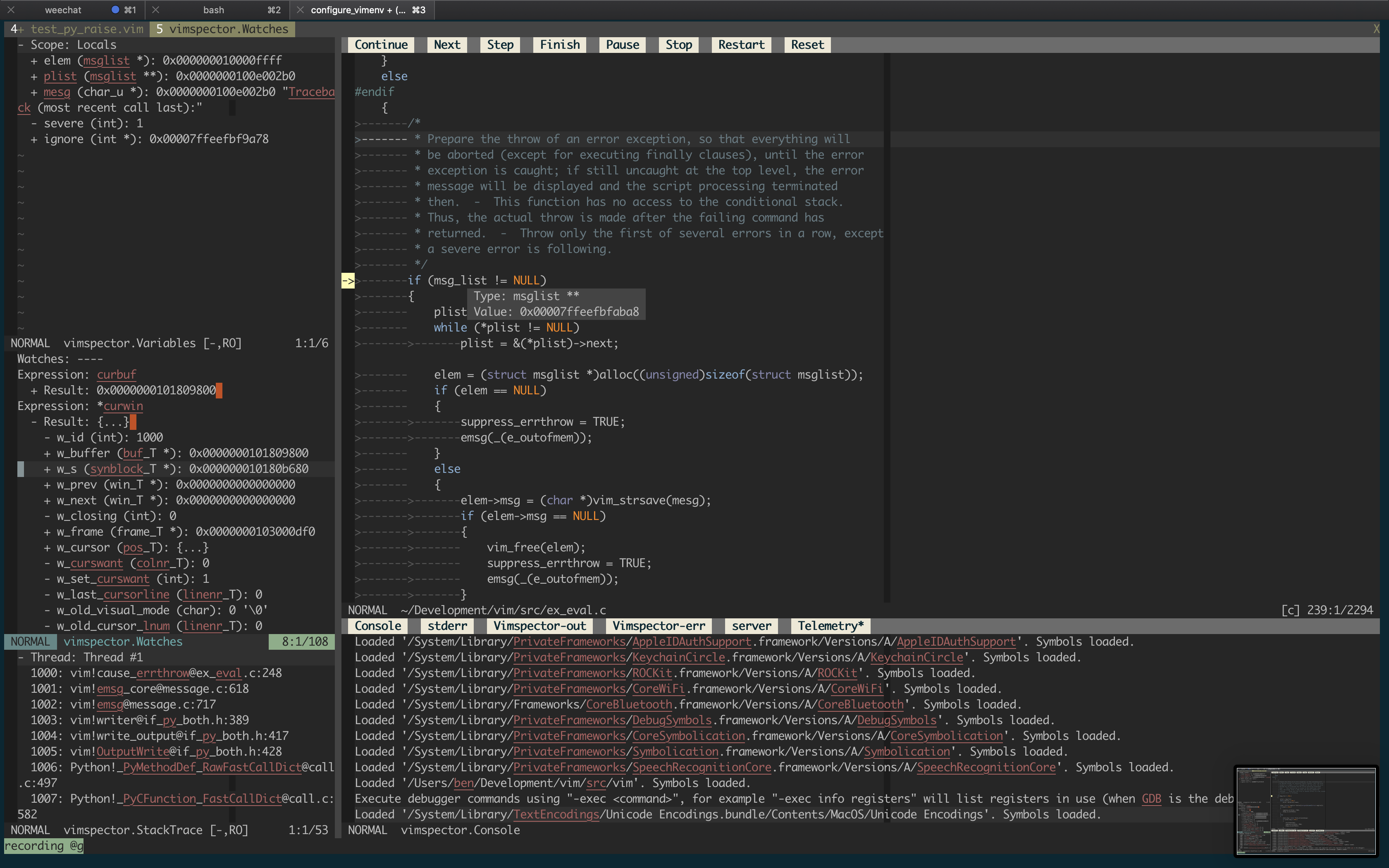
|
|
|
|
## Supported debugging features
|
|
|
|
- breakpoints (function, line and exception breakpoints)
|
|
- step in/out/over/up, stop, restart
|
|
- launch and attach
|
|
- remote launch, remote attach
|
|
- locals and globals display
|
|
- watch expressions
|
|
- call stack and navigation
|
|
- variable value display hover
|
|
- interactive debug console
|
|
- launch debugee within Vim's embedded terminal
|
|
- logging/stdout display
|
|
|
|
## Supported languages:
|
|
|
|
The following languages are used frequently by the author and are known to work
|
|
with little effort, and are supported as first-class languages.
|
|
|
|
- C, C++, etc. (languages supported by gdb or lldb)
|
|
- Python 2 and Python 3
|
|
- TCL
|
|
- Bash scripts
|
|
|
|
## Languages known to work
|
|
|
|
The following languages are used frequently by the author, but require some sort
|
|
of hackery that makes it challenging to support generally. These languages are
|
|
on a best-efforts basis:
|
|
|
|
- Java (see caveats)
|
|
- C# (c-sharp) using dotnet core
|
|
- Go (requires separate installation of [Delve][])
|
|
- Node.js (requires node <12 for installation)
|
|
- Anything running in chrome (i.e. javascript).
|
|
|
|
## Languages known not to work
|
|
|
|
- C# (c-sharp) using mono debug adapter (vimspector unable to set breakpoints)
|
|
|
|
## Other languages
|
|
|
|
Vimspector should work for any debug adapter that works in Visual Studio Code,
|
|
but there are certain limitations (see FAQ). If you're trying to get vimspector
|
|
to work with a language that's not "supported", head over to Gitter and contact
|
|
the author. It should be possible to get it going.
|
|
|
|
# Installation
|
|
|
|
There are 2 installation methods:
|
|
|
|
* Using a release tarball, or
|
|
* Manually
|
|
|
|
Release tarballs come with debug adapters for the default languages
|
|
pre-packaged. To use a release tarball:
|
|
|
|
1. Check the dependencies
|
|
2. Untar the release tarball for your OS into `$HOME/.vim/pack`:
|
|
|
|
```
|
|
$ mkdir -p $HOME/.vim/pack
|
|
$ curl -L <url> | tar -C $HOME/.vim/pack zxvf -
|
|
```
|
|
|
|
3. Configure your project's debug profiles (create `.vimspector.json`)
|
|
|
|
Alternatively, you can clone the repo and select which gadgets are installed:
|
|
|
|
1. Check the dependencies
|
|
1. Install the plugin as a Vim package. See `:help packages`.
|
|
2. Install some 'gadgets' (debug adapters)
|
|
3. Configure your project's debug profiles (create `.vimspector.json`)
|
|
|
|
## Dependencies
|
|
|
|
Vimspector requires:
|
|
|
|
* One of:
|
|
* Vim 8.2 compiled with Python 3.6 or later
|
|
* Neovim 0.4.3 with Python 3.6 or later (experimental)
|
|
* One of the following operating systems:
|
|
* Linux
|
|
* macOS Mojave or later
|
|
* Windows (experimental)
|
|
|
|
Why such a new vim ? Well 2 reasons:
|
|
|
|
1. Because vimspector uses a lot of new Vim features
|
|
2. Because there are Vim bugs that vimspector triggers that will frustrate you
|
|
if you hit them.
|
|
|
|
Why is neovim experimental? Because the author doesn't use neovim regularly, and
|
|
there are no regression tests for vimspector in neovim, so it's likely to break
|
|
frequently. Issue reports are handled on best-efforts basis, and PRs are
|
|
welcome to fix bugs. See also the next section descibing differences for neovim
|
|
vs vim.
|
|
|
|
Why Windows support experimental? Because it's effort and it's not a priority
|
|
for the author. PRs are welcome to fix bugs. Windows will not be regularly
|
|
tested.
|
|
|
|
Which Linux versions? I only test on Ubuntu 18.04 and later and RHEL 7.
|
|
|
|
## Neovim differences
|
|
|
|
neovim doesn't implement some features Vimspector relies on:
|
|
|
|
* WinBar - used for the buttons at the top of the code window and for changing
|
|
the output window's current output.
|
|
* Prompt Buffers - used to send commands in the Console and add Watches
|
|
* Balloons - used to display the values of variables when debugging.
|
|
|
|
Workarounds are in place as follows:
|
|
|
|
* WinBar - There are [mappings](#mappings),
|
|
[`:VimspectorShowOutput`](#program-output) and
|
|
[`:VimspectorReset`](#closing-debugger)
|
|
* Prompt Buffers - There are [`:VimspectorEval`](#console)
|
|
and [`:VimspectorWatch`](#watches)
|
|
|
|
There is no workaroud for the lack of balloons; you'll just have to use
|
|
`:VimspectorEval` or `:VimspectorWatch`, or switch to Vim.
|
|
|
|
## Windows differences
|
|
|
|
The following features are not implemented for Windows:
|
|
|
|
* Tailing the vimspector log in the Output Window.
|
|
|
|
## Language dependencies
|
|
|
|
The debug adapters themselves have certain runtime dependencies. They are
|
|
categorised as follows:
|
|
|
|
* `Tested` : Fully supported, Vimspector regression tests cover them
|
|
* `Supported` : Fully supported, frequently used and manually tested
|
|
* `Experimental`: Working, but not frequently used and rarely tested
|
|
* `Legacy`: No longer supported, please migrate your config
|
|
|
|
| Language | Status | Switch | Adapter | Dependencies |
|
|
|------------------|--------------|--------------------------------|---------------------|---------------------------------|
|
|
| C, C++, etc. | Tested | `--all` or `--enable-c` | vscode-cpptools | mono-core |
|
|
| Python | Tested | `--all` or `--enable-python` | debugpy | Python 2.7 or Python 3 |
|
|
| Go | Tested | `--enable-go` | vscode-go | Go, [Delve][] |
|
|
| TCL | Supported | `--all` or `--enable-tcl` | tclpro | TCL 8.5 |
|
|
| Bourne Shell | Supported | `--all` or `--enable-bash` | vscode-bash-debug | Bash v?? |
|
|
| Node.js | Supported | `--force-enable-node` | vscode-node-debug2 | 6 < Node < 12, Npm |
|
|
| Javascript | Supported | `--force-enable-chrome` | debugger-for-chrome | Chrome |
|
|
| C# (dotnet core) | Experimental | `--force-enable-csharp` | netcoredbg | DotNet core |
|
|
| C# (mono) | Experimental | `--force-enable-csharp` | vscode-mono-debug | Mono |
|
|
| Python.legacy | Legacy | `--force-enable-python.legacy` | vscode-python | Node 10, Python 2.7 or Python 3 |
|
|
|
|
For other languages, you'll need some other way to install the gadget.
|
|
|
|
## Clone the plugin
|
|
|
|
There are many Vim plugin managers, and I'm not going to state a particular
|
|
preference, so if you choose to use one, you're on your own with installation
|
|
issues.
|
|
|
|
Install vimspector as a Vim package, either by cloning this repository into your
|
|
package path, like this:
|
|
|
|
```
|
|
$ git clone https://github.com/puremourning/vimspector ~/.vim/pack/vimspector/opt/vimspector
|
|
```
|
|
|
|
2. Configure vimspector in your `.vimrc`:
|
|
|
|
```viml
|
|
let g:vimspector_enable_mappings = 'HUMAN'
|
|
```
|
|
|
|
3. Load vimspector at runtime. This can also be added to your `.vimrc` after
|
|
configuring vimspector:
|
|
|
|
```
|
|
packadd! vimspector
|
|
```
|
|
|
|
See support/doc/example_vimrc.vim.
|
|
|
|
Also, if you want to try out vimspector without changing your vim config, run:
|
|
|
|
```
|
|
vim -Nu /path/to/vimspector/tests/vimrc --cmd "let g:vimspector_enable_mappings='HUMAN'"
|
|
```
|
|
|
|
## Install some gadgets
|
|
|
|
There are a couple of ways of doing this, but ***using `install_gadget.py` is
|
|
highly recommended*** where that's an option.
|
|
|
|
For supported languages, `install_gadget.py` will:
|
|
|
|
* Download the relevant debug adapter at a version that's been tested from the
|
|
internet, either as a 'vsix' (Visusal Studio plugin), or clone from GitHub. If
|
|
you're in a corporate environment and this is a problem, you may need to
|
|
install the gadgets manually.
|
|
* Perform any necessary post-installation actions, such as:
|
|
* Building any binary components
|
|
* Ensuring scripts are executable, because the VSIX pacakges are usually
|
|
broken in this regard.
|
|
* Set up the `gadgetDir` symlinks for the platform.
|
|
|
|
To install the tested debug adapter for a language, run:
|
|
|
|
```
|
|
./install_gadget.py --enable-<language>
|
|
```
|
|
|
|
Or to install all supported gagtets:
|
|
|
|
```
|
|
./install_gadget.py --all
|
|
```
|
|
|
|
To install everything other than TCL (because TCL is sadly not as popular as it
|
|
should be):
|
|
|
|
```
|
|
./install_gadget.py --all --disable-tcl
|
|
```
|
|
|
|
See `--help` for more info.
|
|
|
|
## Manual gadget installation
|
|
|
|
You essentially need to get a working installation of the debug adapter, find
|
|
out how to start it, and configure that in an `adapters` entry in either your
|
|
`.vimspector.json` or in `.gadgets.json`.
|
|
|
|
The simplest way in practice is to install or start Visusal Studio Code and use
|
|
its extension manager to install the relevant extension. You can then configure
|
|
the adapter manually in the `adapters` section of your `.vimspector.json` or in
|
|
a `gadgets.json`.
|
|
|
|
PRs are always welcome to add configuration to do this to `install_gadget.py`.
|
|
|
|
### The gadget directory
|
|
|
|
Vimspector uses the following directory by default to look for a file named
|
|
`.gadgets.json`: `</path/to/vimspector>/gadgets/<os>`.
|
|
|
|
This path is exposed as the vimspector _variable_ `${gadgetDir}`. This is useful
|
|
for configuring gadget command lines.
|
|
|
|
Where os is one of:
|
|
|
|
* `macos`
|
|
* `linux`
|
|
* `windows` (though note: Windows is not supported)
|
|
|
|
The format is the same as `.vimspector.json`, but only the `adapters` key is
|
|
used:
|
|
|
|
Example:
|
|
|
|
```json
|
|
{
|
|
"adapters": {
|
|
"lldb-vscode": {
|
|
"variables": {
|
|
"LLVM": {
|
|
"shell": "brew --prefix llvm"
|
|
}
|
|
},
|
|
"attach": {
|
|
"pidProperty": "pid",
|
|
"pidSelect": "ask"
|
|
},
|
|
"command": [
|
|
"${LLVM}/bin/lldb-vscode"
|
|
],
|
|
"env": {
|
|
"LLDB_LAUNCH_FLAG_LAUNCH_IN_TTY": "YES"
|
|
},
|
|
"name": "lldb"
|
|
},
|
|
"vscode-cpptools": {
|
|
"attach": {
|
|
"pidProperty": "processId",
|
|
"pidSelect": "ask"
|
|
},
|
|
"command": [
|
|
"${gadgetDir}/vscode-cpptools/debugAdapters/OpenDebugAD7"
|
|
],
|
|
"name": "cppdbg"
|
|
},
|
|
"vscode-python": {
|
|
"command": [
|
|
"node",
|
|
"${gadgetDir}/vscode-python/out/client/debugger/debugAdapter/main.js"
|
|
],
|
|
"name": "vscode-python"
|
|
}
|
|
}
|
|
}
|
|
```
|
|
|
|
The gadget file is automatically written by `install_gadget.py`.
|
|
|
|
Vimspector will also load any fies matching:
|
|
`</path/to/vimspector>/gadgets/<os>/.gadgets.d/*.json`. These have the same
|
|
format as `.gadgets.json` but are not overwritten when running
|
|
`install_gadget.py`.
|
|
|
|
# About
|
|
|
|
## Background
|
|
|
|
The motivation is that debugging in Vim is a pretty horrible experience,
|
|
particularly if you use multiple languages. With pyclewn no more and the
|
|
built-in termdebug plugin limited to gdb, I wanted to explore options.
|
|
|
|
While Language Server Protocol is well known, the Debug Adapter Protocol is less
|
|
well known, but achieves a similar goal: language agnostic API abstracting
|
|
debuggers from clients.
|
|
|
|
The aim of this project is to provide a simple but effective debugging
|
|
experience in Vim for multiple languages, by leveraging the debug adapters that
|
|
are being built for Visual Studio Code.
|
|
|
|
The ability to do remote debugging is a must. This is key to my workflow, so
|
|
baking it in to the debugging experience is a top bill goal for the project. So
|
|
vimspector has first-class support for executing programs remotely and attaching
|
|
to them. This support is unique to vimspector and on top of (complementary to)
|
|
any such support in actual debug adapters.
|
|
|
|
## Status
|
|
|
|
Vimspector is a work in progress, and any feedback/contributions are more
|
|
than welcome.
|
|
|
|
The backlog can be [viewed on Trello](https://trello.com/b/yvAKK0rD/vimspector).
|
|
|
|
In order to use it you have to currently:
|
|
|
|
- Write a mostly undocumented configuration file that contains essentially
|
|
undocumented parameters.
|
|
- Accept that it isn't complete yet
|
|
- Work around some frustrating bugs in Vim
|
|
- Ignore probably many bugs in vimspector!
|
|
|
|
### Experimental
|
|
|
|
The plugin is currently _experimental_. That means that any part of it
|
|
can (and probably will) change, including things like:
|
|
|
|
- breaking changes to the configuration
|
|
- keys, layout, functionatlity of the UI
|
|
|
|
If a large number of people start using it then I will do my best to
|
|
minimise this, or at least announce on Gitter.
|
|
|
|
# Mappings
|
|
|
|
By default, vimspector does not change any of your mappings. Mappings are very
|
|
personal and so you should work out what you like and use vim's powerful mapping
|
|
features to set your own mappings. To that end, Vimspector defines the following
|
|
`<Plug>` mappings:
|
|
|
|
* `<Plug>VimspectorContinue`
|
|
* `<Plug>VimspectorStop`
|
|
* `<Plug>VimspectorRestart`
|
|
* `<Plug>VimspectorPause`
|
|
* `<Plug>VimspectorToggleBreakpoint`
|
|
* `<Plug>VimspectorAddFunctionBreakpoint`
|
|
* `<Plug>VimspectorStepOver`
|
|
* `<Plug>VimspectorStepInto`
|
|
* `<Plug>VimspectorStepOut`
|
|
|
|
These map 1-1 with the API functions below.
|
|
|
|
For example, if you want `<F5>` to start/continue debugging, add this to some
|
|
appropriate place, such as your `vimrc` (hint: run `:e $MYVIMRC`).
|
|
|
|
```viml
|
|
nmap <F5> <Plug>VimspectorContinue
|
|
```
|
|
|
|
That said, many people are familiar with particular debuggers, so the following
|
|
mappings can be enabled by setting `g:vimspector_enable_mappings` to the
|
|
specified value.
|
|
|
|
Please note: Currently there are no `<plug>` mappings. These will be added in
|
|
future to make custom mappings much easier.
|
|
|
|
## Visual Studio / VSCode
|
|
|
|
To use Visual Studio-like mappings, add the following to your `vimrc` **before
|
|
loading vimspector**:
|
|
|
|
```viml
|
|
let g:vimspector_enable_mappings = 'VISUAL_STUDIO'
|
|
```
|
|
|
|
| Key | Function | API |
|
|
| --- | --- | --- |
|
|
| `F5` | When debugging, continue. Otherwise start debugging. | `vimspector#Continue()` |
|
|
| `Shift F5` | Stop debugging. | `vimspector#Stop()` |
|
|
| `Ctrl Shift F5` | Restart debugging with the same configuration. | `vimspector#Restart()` |
|
|
| `F6` | Pause debugee. | `vimspector#Pause()` |
|
|
| `F9` | Toggle line breakpoint on the current line. | `vimspector#ToggleBreakpoint()` |
|
|
| `Shift F9` | Add a function breakpoint for the expression under cursor | `vimspector#AddFunctionBreakpoint( '<cexpr>' )` |
|
|
| `F10` | Step Over | `vimspector#StepOver()` |
|
|
| `F11` | Step Into | `vimspector#StepInto()` |
|
|
| `Shift F11` | Step out of current function scope | `vimspector#StepOut()` |
|
|
|
|
## Human Mode
|
|
|
|
If, like me, you only have 2 hands and 10 fingers, you probably don't like
|
|
Ctrl-Shift-F keys. Also, if you're running in a terminal, there's a real
|
|
possibility of terminfo being wrong for shifted-F-keys, particularly if your
|
|
`TERM` is `screen-256color`. If these issues (number of hands, `TERM` variables)
|
|
are unfixable, try the following mappings, by adding the following **before
|
|
loading vimspector**:
|
|
|
|
```viml
|
|
let g:vimspector_enable_mappings = 'HUMAN'
|
|
```
|
|
|
|
| Key | Function | API |
|
|
| --- | --- | --- |
|
|
| `F5` | When debugging, continue. Otherwise start debugging. | `vimspector#Continue()` |
|
|
| `F3` | Stop debugging. | `vimspector#Stop()` |
|
|
| `F4` | Restart debugging with the same configuration. | `vimspector#Restart()` |
|
|
| `F6` | Pause debugee. | `vimspector#Pause()` |
|
|
| `F9` | Toggle line breakpoint on the current line. | `vimspector#ToggleBreakpoint()` |
|
|
| `F8` | Add a function breakpoint for the expression under cursor | `vimspector#AddFunctionBreakpoint( '<cexpr>' )` |
|
|
| `F10` | Step Over | `vimspector#StepOver()` |
|
|
| `F11` | Step Into | `vimspector#StepInto()` |
|
|
| `F12` | Step out of current function scope | `vimspector#StepOut()` |
|
|
|
|
# Usage
|
|
|
|
## Launch and attach by PID:
|
|
|
|
* Create `vimspector.json`. See [below](#supported-languages).
|
|
* `:call vimspector#Launch()` and select a configuration.
|
|
|
|
### Launch with options
|
|
|
|
To launch a specific debug configuration, or specify [replacement
|
|
variables][vimspector-ref-var] for the launch, you can use:
|
|
|
|
* `:call vimspector#LaunchWithSettings( dict )`
|
|
|
|
The argument is a `dict` with the following keys:
|
|
|
|
* `configuration`: (optional) Name of the debug configuration to launch
|
|
* `<anything else>`: (optional) Name of a variable to set
|
|
|
|
This allows for some intergration and automation. For example, if you have a
|
|
configuration named `Run Test` that contains a [replacement
|
|
variable][vimspector-ref-var] named `${Test}` you could write a mapping which
|
|
ultimately executes:
|
|
|
|
```viml
|
|
vimspector#LaunchWithSettings( #{ configuration: 'Run Test'
|
|
\ Test: 'Name of the test' } )
|
|
```
|
|
|
|
This would start the `Run Test` configuration with `${Test}` set to `'Name of
|
|
the test'` and Vimspector would _not_ prompt the user to enter or confirm these
|
|
things.
|
|
|
|
See [this issue](https://github.com/puremourning/vimspector/issues/97) for
|
|
another example where it can be used to specify the port to connect the [java
|
|
debugger](#java---partially-supported)
|
|
|
|
## Breakpoints
|
|
|
|
* Use `vimspector#ToggleBreakpoint()` to set/disable/delete a line breakpoint.
|
|
* Use `vimspector#AddFunctionBreakpoint( '<name>' )` to add a function
|
|
breakpoint.
|
|
|
|
## Stepping
|
|
|
|
* Step in/out, finish, continue, pause etc. using the WinBar.
|
|
* If you really want to, the API is `vimspector#StepInto()` etc.
|
|
|
|
## Variables and scopes
|
|
|
|
* Current scope shows values of locals.
|
|
* Use `<CR>` to expand/collapse (+, -).
|
|
* When changing the stack frame the locals window updates.
|
|
* While paused, hover to see values
|
|
|
|
## Watches
|
|
|
|
The watches window is a prompt buffer, where that's available. Enter insert mode
|
|
to add a new watch expression.
|
|
|
|
* Add watches to the variables window by entering insert mode and
|
|
typing the expression. Commit with `<CR>`.
|
|
* Alternatively, use `:VimspectorWatch <expression>`. Tab-completion for
|
|
expression is available in some debug adapters.
|
|
* Expand result with `<CR>`.
|
|
* Delete with `<DEL>`.
|
|
|
|
## Stack Traces
|
|
|
|
* In the threads window, use `<CR>` to expand/collapse.
|
|
* Use `<CR>` on a stack frame to jump to it.
|
|
|
|
## Program Output
|
|
|
|
* In the outputs window use the WinBar to select the output channel.
|
|
* Alternatively, use `:VimspectorShowOutput <category>`. Use command-line
|
|
completion to see the categories.
|
|
* The debugee prints to the stdout channel.
|
|
* Other channels may be useful for debugging.
|
|
|
|
### Console
|
|
|
|
The console window is a prompt buffer, where that's available, and can be used
|
|
as an interactive CLI for the debug adapter. Support for this varies amongt
|
|
adapters.
|
|
|
|
* Enter insert mode to enter a command to evaluate.
|
|
* Alternatively, `:VimspectorEval <expression>`. Completion is available with
|
|
some debug adapters.
|
|
* Commit the request with `<CR>`
|
|
* The request and subsequent result are printed.
|
|
|
|
NOTE: See also [Watches](#watches) above.
|
|
|
|
## Closing debugger
|
|
|
|
To close the debugger, use:
|
|
|
|
* `Reset` WinBar button (`set mouse=a`)
|
|
* `:VimspectorReset` when the WinBar is not available.
|
|
* `call vimspector#Reset()`
|
|
|
|
# Debug adapter configuration
|
|
|
|
For an introduction to the configuration of `.vimspector.json`, take a look at
|
|
the Getting Started section of the [Vimspector website][website].
|
|
|
|
For full explanation, including how to use variables, substitutions and how to
|
|
specify exception breakpoints, see [the docs][vimspector-ref].
|
|
|
|
The JSON configuration file allows C-style comments:
|
|
|
|
* `// comment to end of line ...`
|
|
* `/* inline comment ... */`
|
|
|
|
Current tested with the following debug adapters.
|
|
|
|
## C, C++, Rust, etc.
|
|
|
|
* C++: [vscode-cpptools](https://github.com/Microsoft/vscode-cpptools)
|
|
|
|
---
|
|
|
|
***NOTE FOR macOS USERS***: Currently VSCode cpptools does *not* work on macOS
|
|
out of the box.
|
|
See [this issue]( https://github.com/microsoft/vscode-cpptools/issues/3829)
|
|
for the full details.
|
|
|
|
To resolve it:
|
|
|
|
* Install [my build](https://github.com/puremourning/lldb-mi/releases) of
|
|
`lldb-mi`. Instructions
|
|
[here](https://github.com/microsoft/vscode-cpptools/issues/3829#issuecomment-578454043).
|
|
* Add the following to the `configuration` section of your `.vimspector.json`
|
|
(below):
|
|
|
|
```
|
|
{
|
|
"configurations": {
|
|
"<name>: Launch": {
|
|
"adapter": "vscode-cpptools",
|
|
"configuration": {
|
|
"miDebuggerPath": "/path/to/my/build/of/lldb-mi",
|
|
...
|
|
```
|
|
|
|
An alternative is to to use `lldb-vscode`, which comes with llvm. Here's how:
|
|
|
|
* Install llvm with HomeBrew: `brew install llvm`
|
|
* Create a file named
|
|
`/path/to/vimspector/gadgets/macos/.gadgets.d/lldb-vscode.json`:
|
|
|
|
```json
|
|
|
|
{
|
|
"adapters": {
|
|
"lldb-vscode": {
|
|
"variables": {
|
|
"LLVM": {
|
|
"shell": "brew --prefix llvm"
|
|
}
|
|
},
|
|
"attach": {
|
|
"pidProperty": "pid",
|
|
"pidSelect": "ask"
|
|
},
|
|
"command": [
|
|
"${LLVM}/bin/lldb-vscode"
|
|
],
|
|
"env": {
|
|
"LLDB_LAUNCH_FLAG_LAUNCH_IN_TTY": "YES"
|
|
},
|
|
"name": "lldb"
|
|
}
|
|
}
|
|
}
|
|
```
|
|
|
|
---
|
|
|
|
Example `.vimspector.json` (works with both `vscode-cpptools` and `lldb-vscode`.
|
|
For `lldb-vscode` replace the name of the adapter with `lldb-vscode`:
|
|
|
|
```
|
|
{
|
|
"configurations": {
|
|
"<name>: Launch": {
|
|
"adapter": "vscode-cpptools",
|
|
"configuration": {
|
|
"name": "<name>",
|
|
"type": "cppdbg",
|
|
"request": "launch",
|
|
"program": "<path to binary>",
|
|
"args": [ ... ],
|
|
"cwd": "<working directory>",
|
|
"environment": [ ... ],
|
|
"externalConsole": true,
|
|
"MIMode": "lldb"
|
|
}
|
|
},
|
|
"<name>: Attach": {
|
|
"adapter": "vscode-cpptools",
|
|
"configuration": {
|
|
"name": "<name>: Attach",
|
|
"type": "cppdbg",
|
|
"request": "attach",
|
|
"program": "<path to binary>",
|
|
"MIMode": "lldb"
|
|
}
|
|
}
|
|
...
|
|
}
|
|
}
|
|
```
|
|
|
|
## Python
|
|
|
|
* Python: [debugpy][]
|
|
* Requires `install_gadget.py --enable-python`, this requires a working compiler
|
|
to build a C python extension for performance.
|
|
|
|
**Migrating from `vscode-python`**: change `"adapter": "vscode-python"` to
|
|
`"adapter": "debugpy"`.
|
|
|
|
```json
|
|
{
|
|
"configurations": {
|
|
"<name>: Launch": {
|
|
"adapter": "debugpy",
|
|
"configuration": {
|
|
"name": "<name>: Launch",
|
|
"type": "python",
|
|
"request": "launch",
|
|
"cwd": "<working directory>",
|
|
"python": "/path/to/python/interpreter/to/use",
|
|
"stopOnEntry": true,
|
|
"console": "externalTerminal",
|
|
"debugOptions": [],
|
|
"program": "<path to main python file>",
|
|
}
|
|
}
|
|
...
|
|
}
|
|
}
|
|
```
|
|
|
|
### Legacy: vscode-python
|
|
|
|
* No longer installed by default - please pass `--force-enable-python.legacy` if
|
|
you just want to continue using your working setup.
|
|
* [vscode-python](https://github.com/Microsoft/vscode-python)
|
|
* NOTE: You must be running `node` 10. See [this issue](https://github.com/puremourning/vimspector/issues/105)
|
|
|
|
```json
|
|
{
|
|
"configurations": {
|
|
"<name>: Launch": {
|
|
"adapter": "vscode-python",
|
|
"configuration": {
|
|
"name": "<name>: Launch",
|
|
"type": "python",
|
|
"request": "launch",
|
|
"cwd": "<working directory>",
|
|
"stopOnEntry": true,
|
|
"console": "externalTerminal",
|
|
"debugOptions": [],
|
|
"program": "<path to main python file>"
|
|
}
|
|
}
|
|
...
|
|
}
|
|
}
|
|
```
|
|
|
|
## TCL
|
|
|
|
* TCL (TclProDebug)
|
|
|
|
See [my fork of TclProDebug](https://github.com/puremourning/TclProDebug) for instructions.
|
|
|
|
## C♯
|
|
|
|
* C# - dotnet core
|
|
|
|
Requires `install_gadget.py --force-enable-csharp`
|
|
|
|
```json
|
|
{
|
|
"configurations": {
|
|
"launch - netcoredbg": {
|
|
"adapter": "netcoredbg",
|
|
"configuration": {
|
|
"request": "launch",
|
|
"program": "${workspaceRoot}/bin/Debug/netcoreapp2.2/csharp.dll",
|
|
"args": [],
|
|
"stopAtEntry": true
|
|
}
|
|
}
|
|
}
|
|
}
|
|
```
|
|
|
|
* C# - mono
|
|
|
|
Requires `install_gadget.py --force-enable-csharp`.
|
|
|
|
***Known not to work.****
|
|
|
|
```json
|
|
{
|
|
"configurations": {
|
|
"launch - mono": {
|
|
"adapter": "vscode-mono-debug",
|
|
"configuration": {
|
|
"request": "launch",
|
|
"program": "${workspaceRoot}/bin/Debug/netcoreapp2.2/csharp.dll",
|
|
"args": [],
|
|
"cwd": "${workspaceRoot}",
|
|
"runtimeExecutable": "mono",
|
|
"runtimeArgs": [],
|
|
"env": [],
|
|
"externalConsole": false,
|
|
"console": "integratedTerminal"
|
|
}
|
|
}
|
|
}
|
|
}
|
|
```
|
|
|
|
## Go
|
|
|
|
* Go
|
|
|
|
Requires:
|
|
|
|
* `install_gadget.py --enable-go`
|
|
* [Delve][delve-install] installed, e.g. `go get -u github.com/go-delve/delve/cmd/dlv`
|
|
* Delve to be in your PATH, or specify the `dlvToolPath` launch option
|
|
|
|
```json
|
|
{
|
|
"configurations": {
|
|
"run": {
|
|
"adapter": "vscode-go",
|
|
"configuration": {
|
|
"request": "launch",
|
|
"program": "${fileDirname}",
|
|
"mode": "debug",
|
|
"dlvToolPath": "$HOME/go/bin/dlv"
|
|
}
|
|
}
|
|
}
|
|
}
|
|
```
|
|
|
|
## PHP
|
|
|
|
This uses the php-debug, see
|
|
https://marketplace.visualstudio.com/items?itemName=felixfbecker.php-debug
|
|
|
|
Requires:
|
|
|
|
* (optional) Xdebug helper for chrome https://chrome.google.com/webstore/detail/xdebug-helper/eadndfjplgieldjbigjakmdgkmoaaaoc
|
|
* `install_gadget.py --force-enable-php`
|
|
* configured php xdebug extension
|
|
```ini
|
|
zend_extension=xdebug.so
|
|
xdebug.remote_enable=on
|
|
xdebug.remote_handler=dbgp
|
|
xdebug.remote_host=localhost
|
|
xdebug.remote_port=9000
|
|
```
|
|
replace `localhost` with the ip of your workstation.
|
|
|
|
lazy alternative
|
|
```ini
|
|
zend_extension=xdebug.so
|
|
xdebug.remote_enable=on
|
|
xdebug.remote_handler=dbgp
|
|
xdebug.remote_connect_back=true
|
|
xdebug.remote_port=9000
|
|
```
|
|
|
|
* .vimspectory.json
|
|
```json
|
|
{
|
|
"configurations": {
|
|
"Listen for XDebug": {
|
|
"adapter": "vscode-php-debug",
|
|
"configuration": {
|
|
"name": "Listen for XDebug",
|
|
"type": "php",
|
|
"request": "launch",
|
|
"port": 9000,
|
|
"stopOnEntry": false,
|
|
"pathMappings": {
|
|
"/var/www/html": "${workspaceRoot}"
|
|
}
|
|
}
|
|
},
|
|
"Launch currently open script": {
|
|
"adapter": "vscode-php-debug",
|
|
"configuration": {
|
|
"name": "Launch currently open script",
|
|
"type": "php",
|
|
"request": "launch",
|
|
"program": "${file}",
|
|
"cwd": "${fileDirname}",
|
|
"port": 9000
|
|
}
|
|
}
|
|
}
|
|
}
|
|
```
|
|
|
|
### Debug web application
|
|
append `XDEBUG_SESSION_START=xdebug` to your query string
|
|
```
|
|
curl "http://localhost?XDEBUG_SESSION_START=xdebug"
|
|
```
|
|
or use the previously mentioned Xdebug Helper extension (which sets a `XDEBUG_SESSION` cookie)
|
|
|
|
### Debug cli application
|
|
```
|
|
export XDEBUG_CONFIG="idekey=xdebug"
|
|
php <path to script>
|
|
```
|
|
|
|
## JavaScript, TypeScript, etc.
|
|
|
|
* Node.js
|
|
|
|
Requires:
|
|
|
|
* `install_gadget.py --force-enable-node`
|
|
* For installation, a Node.js environemt that is < node 12. I believe this is an
|
|
incompatibility with gulp. Advice, use [nvm][] with `nvm install --lts 10; nvm
|
|
use --lts 10; ./install_gadget.py --force-enable-node ...`
|
|
* Options described here:
|
|
https://code.visualstudio.com/docs/nodejs/nodejs-debugging
|
|
* Example: `support/test/node/simple`
|
|
|
|
```json
|
|
{
|
|
"configurations": {
|
|
"run": {
|
|
"adapter": "vscode-node",
|
|
"configuration": {
|
|
"request": "launch",
|
|
"protocol": "auto",
|
|
"stopOnEntry": true,
|
|
"console": "integratedTerminal",
|
|
"program": "${workspaceRoot}/simple.js",
|
|
"cwd": "${workspaceRoot}"
|
|
}
|
|
}
|
|
}
|
|
}
|
|
```
|
|
|
|
* Chrome
|
|
|
|
This uses the chrome debugger, see
|
|
https://marketplace.visualstudio.com/items?itemName=msjsdiag.debugger-for-chrome.
|
|
|
|
It allows you to debug scripts running inside chrome from within Vim.
|
|
|
|
* `./install_gadget.py --force-enable-chrome`
|
|
* Example: `support/test/chrome`
|
|
|
|
```json
|
|
{
|
|
"configurations": {
|
|
"launch": {
|
|
"adapter": "chrome",
|
|
"configuration": {
|
|
"request": "launch",
|
|
"url": "http://localhost:1234/",
|
|
"webRoot": "${workspaceRoot}/www"
|
|
}
|
|
}
|
|
}
|
|
}
|
|
```
|
|
|
|
## Java - partially supported
|
|
|
|
* Java Debug Server. The [java debug server][java-debug-server] runs as a
|
|
jdt.ls plugin, rather than a standalone debug adapter. This makes a lot
|
|
of sense if you already happen to be running the language server.
|
|
Vimspector is not in the business of running language servers. So, rather
|
|
than doing so, vimspector simply allows you to start the java debug server
|
|
manually (however you might do so) and you can tell vimspector the port
|
|
on which it is listening. See [this issue](https://github.com/puremourning/vimspector/issues/3)
|
|
for more background.
|
|
|
|
* Java - vscode-javac. This works, but is not as functional as Java Debug
|
|
Server. Take a look at [this
|
|
comment](https://github.com/puremourning/vimspector/issues/3#issuecomment-576916076)
|
|
for instructions.
|
|
|
|
# Customisation
|
|
|
|
There is very limited support for customistaion of the UI.
|
|
|
|
## Changing the default signs
|
|
|
|
Vimsector uses the following signs internally. If they are defined before
|
|
Vimsector uses them, they will not be replaced. So to customise the signs,
|
|
define them in your `vimrc`.
|
|
|
|
* `vimspectorBP`: A breakpoint.
|
|
* `vimspectorBPDisabled`: A disabled breakpoint
|
|
* `vimspectorPC` The program counter, i.e. current line.
|
|
|
|
For example, to use some unicode symbols, you could put this in your `vimrc`:
|
|
|
|
```viml
|
|
sign define vimspectorBP text=🔴 texthl=Normal
|
|
sign define vimspectorBPDisabled text=🔵 texthl=Normal
|
|
sign define vimspectorPC text=🔶 texthl=SpellBad
|
|
```
|
|
|
|
# FAQ
|
|
|
|
1. Q: Does it work? A: Yeah, sort of. It's _incredibly_ buggy and unpolished.
|
|
2. Q: Does it work with _this_ language? A: Probably, but it won't
|
|
necessarily be easy to work out what to put in the `.vimspector.json`. As you
|
|
can see above, some of the servers aren't really editor agnostic, and require
|
|
very-specific unique handling.
|
|
3. How do I stop it starting a new Terminal.app on macOS? See [this
|
|
comment](https://github.com/puremourning/vimspector/issues/90#issuecomment-577857322)
|
|
4. Can I specify answers to the annoying questions about exception breakpoints
|
|
in my `vimspector.json` ? Yes, see [here][vimspector-ref-exception].
|
|
|
|
# License
|
|
|
|
[Apache 2.0](http://www.apache.org/licenses/LICENSE-2.0)
|
|
|
|
Copyright © 2018 Ben Jackson
|
|
|
|
[ycmd]: https://github.com/Valloric/ycmd
|
|
[gitter]: https://gitter.im/vimspector/Lobby?utm_source=share-link&utm_medium=link&utm_campaign=share-link
|
|
[java-debug-server]: https://github.com/Microsoft/java-debug
|
|
[website]: https://puremourning.github.io/vimspector-web/
|
|
[delve]: https://github.com/go-delve/delve
|
|
[delve-install]: https://github.com/go-delve/delve/tree/master/Documentation/installation
|
|
[vimspector-ref]: https://puremourning.github.io/vimspector/configuration.html
|
|
[vimspector-ref-var]: https://puremourning.github.io/vimspector/configuration.html#replacements-and-variables
|
|
[vimspector-ref-exception]: https://puremourning.github.io/vimspector/configuration.html#exception-breakpoints
|
|
[debugpy]: https://github.com/microsoft/debugpy
|